Automatic invoices: an NFS-e for every sale, issued by your Asaas account
Organizers with a CNPJ can now turn on automatic NFS-e on Baila: for every paid sale, Asaas issues the invoice on behalf of your company and sends it to the buyer.

In this article
If your company sells tickets or fan-club memberships on Baila through its own Asaas account, the service invoice for each sale (the NFS-e, Brazil's electronic service invoice) can now go out on its own. You turn it on once in Integrations, enter the tax code and ISS rate your accountant gives you, and for every paid sale Asaas issues the invoice on behalf of your company and e-mails it to the buyer.
Watch the video
The whole setup in a minute and a half, on Baila's YouTube channel (in Portuguese): watch on YouTube.
What automatic invoices do
Until now, organizers who had to invoice their sales did it by hand, one by one, on the city hall portal or in Asaas. Now Baila asks Asaas for the invoice the moment the payment lands:
- Asaas issues it, on behalf of your company, on the National NFS-e Portal. Baila never sees your certificate.
- The buyer gets the invoice by e-mail, with the PDF and the XML.
- You follow everything in the event's orders: each sale shows whether its invoice was issued, with the number and the PDF and XML links.
- It is optional. It stays off until you turn it on, and it never blocks a sale.
Asaas charges R$ 0.49 per invoice issued. Baila charges nothing extra for automatic invoices.
What you need before turning it on
| What | Where |
|---|---|
| A company (CNPJ) Asaas account, connected to Baila | Integrations › Asaas |
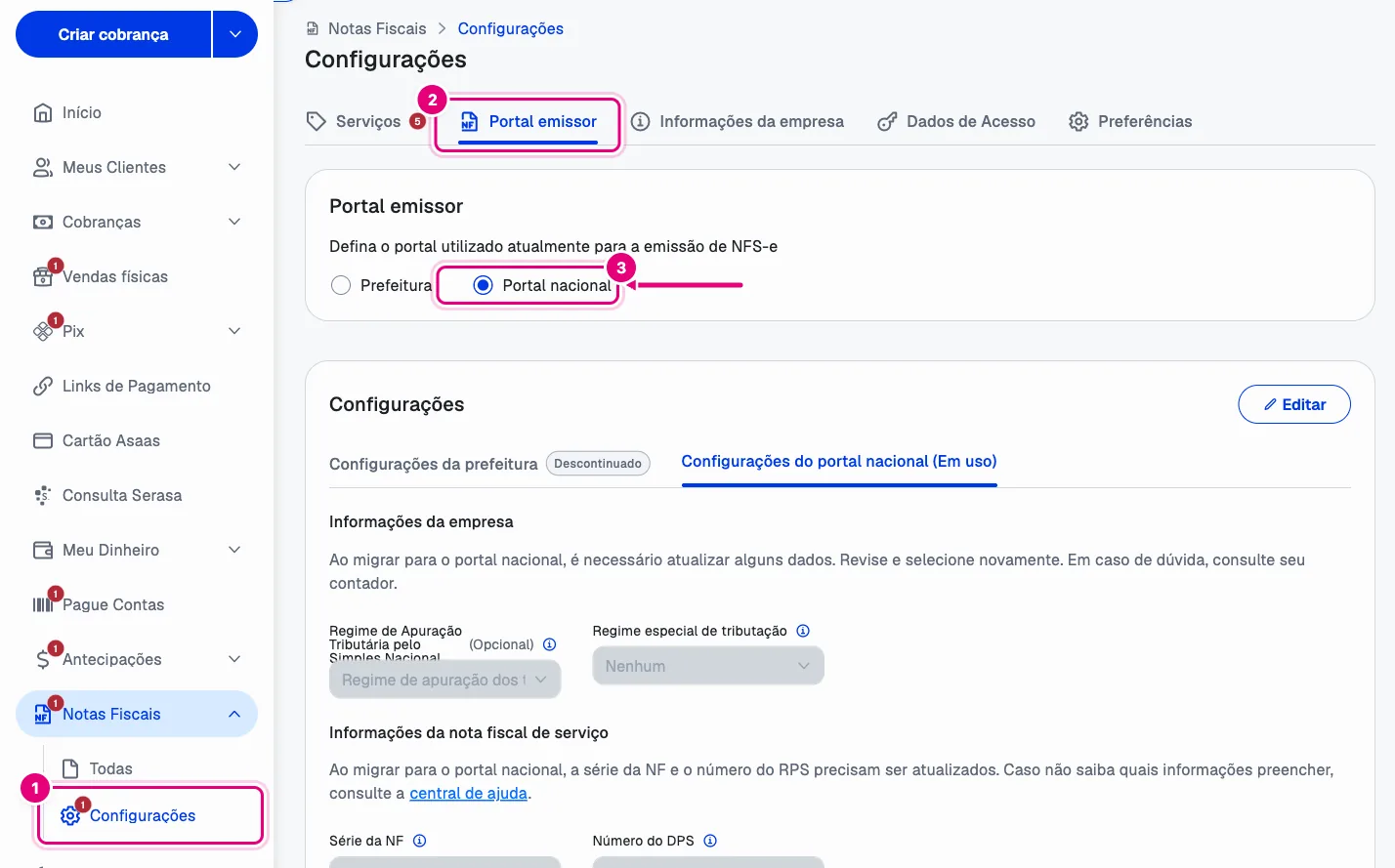
| Municipal registration, tax regime and National Portal access (A1 certificate or login) | At Asaas, under Notas fiscais › Configurações |
| National tax code and ISS rate | From your accountant |
Issuing works in cities that use the National NFS-e Portal, such as Manaus.
How to turn it on, step by step
- In the dashboard, open Integrations and click Configure on the Asaas card.
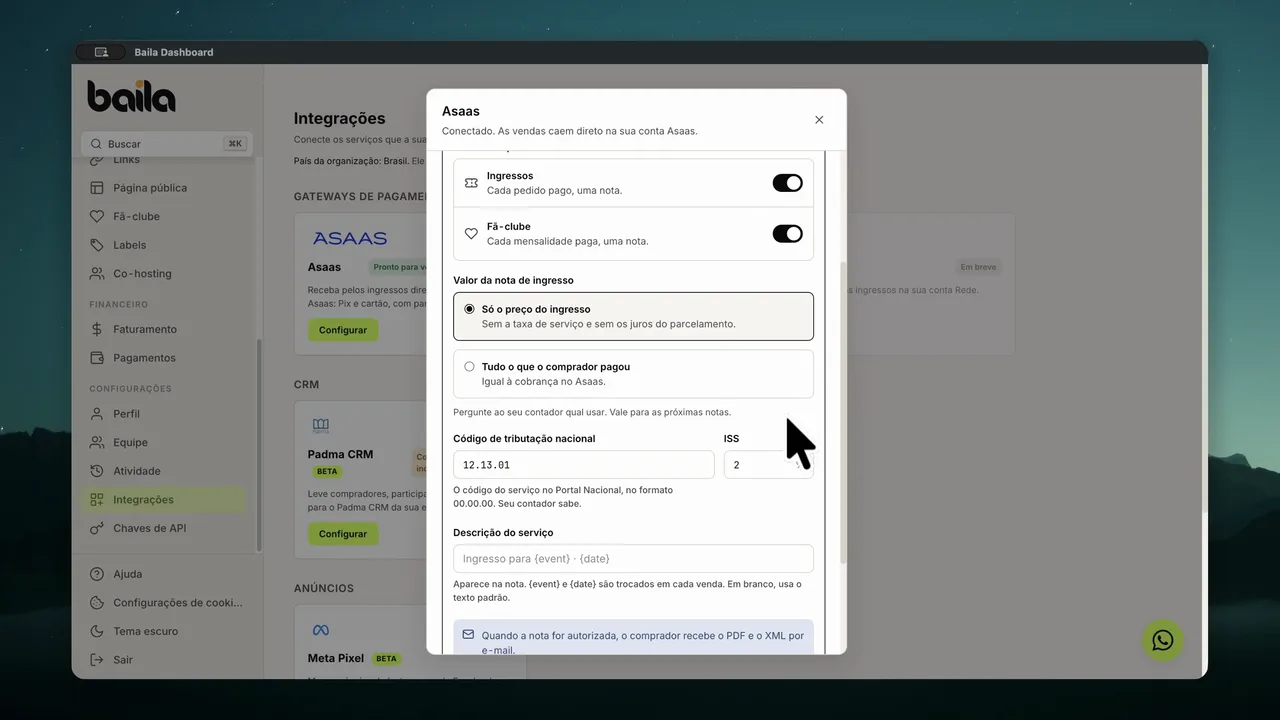
- Under Optional · not needed to sell, open Invoices. If you are connecting Asaas right now, it shows up as step 4, right after the webhook.
- Under Issue invoices for, choose Tickets, Fan club or both.
- Under Ticket invoice amount, choose Ticket price only (without the service fee or installment interest) or Everything the buyer paid.
- Fill in the National tax code as 00.00.00 and the ISS rate in %. For example, 12.13.01 is the code for producing events, shows and dance. Check with your accountant that it fits your case.
- If you like, write a Service description.
{event}and{date}become the event name and date for each sale. - Click Turn on invoices.
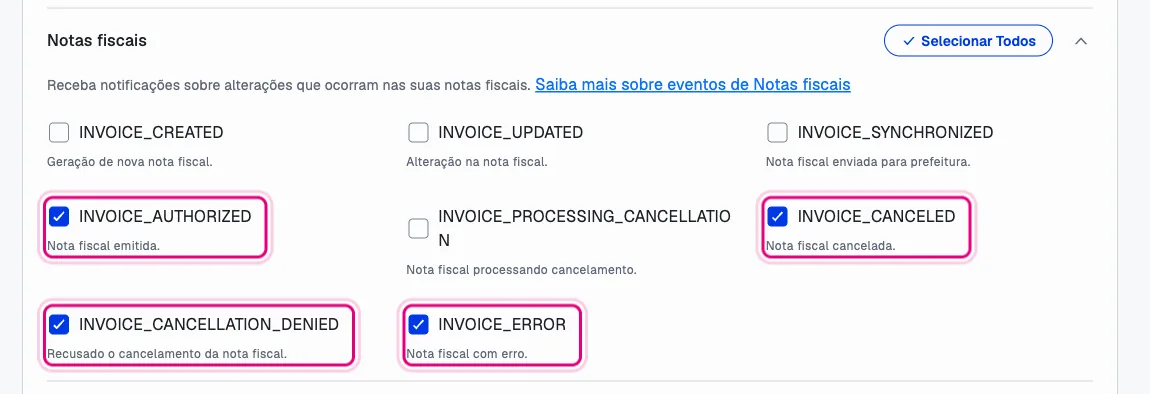
Once it is on, tick the INVOICE_AUTHORIZED, INVOICE_ERROR, INVOICE_CANCELED and INVOICE_CANCELLATION_DENIED events on Baila's webhook at Asaas. With them, the invoice status reaches the order in seconds. Without them, Baila checks every 15 minutes.
The step by step with the Asaas screens, from the National Portal and the certificate to the webhook, is in the help article How to issue NFS-e invoices automatically with Asaas.
What changes for the buyer
At checkout for your events, the buyer now enters their ZIP code (CEP) and street number, with a "No number" option. Nothing else changes, and organizers without invoices do not see these fields. When the invoice is authorized, the buyer gets the e-mail with the PDF and the XML.
Buyers on an older version of the app do not see the new fields. The sale goes through as usual, but without an invoice.
And when something goes wrong
- The invoice did not go out. The order shows "Invoice not issued" with the reason Asaas gave and a "Try again" button. You also get an e-mail from Baila with the reason, a link to Asaas and a link back to the Invoices section. That alert arrives at most once a day.
- You refunded the sale. Asaas cancels the invoice, and the order shows "Invoice cancelled".
Frequently asked questions
Does Baila issue the invoice?
No. Asaas issues it on behalf of your company. Baila asks for the invoice on each paid sale and shows the result in your orders. The tax side is still your responsibility, together with your accountant.
Does it work with a personal Asaas account?
No. Asaas only issues NFS-e from company (CNPJ) accounts. With a personal account, you keep selling as usual, without automatic invoices.
Do past sales get an invoice?
No. Only sales paid after you click Turn on invoices.
Sources
- How to issue NFS-e invoices automatically with Asaas, Baila help center, accessed November 12, 2026.
- How to connect my Asaas payment gateway, Baila help center, accessed November 12, 2026.
- NFS-e: Nota Fiscal de Serviço eletrônica, National NFS-e Portal (in Portuguese), accessed November 12, 2026.