How to connect the Meta pixel to Baila
Step by step to measure your Instagram and Facebook ads with your own pixel on your event pages and checkout, with purchases also confirmed server-side (Conversions API).
This is done in the organizer dashboard
If you advertise your events on Instagram or Facebook, the Meta pixel shows in Ads Manager which ads led to visits, checkouts and purchases. With the Meta Pixel plugin, Baila puts the pixel of your ad account on your public event pages and on checkout. If you also add a Conversions API token, Baila confirms every purchase from its own servers, even when the buyer's browser blocks the pixel.
Meta Pixel is in Beta on Baila: you can already use it, and we're still validating it with the first organizers. If something doesn't work as expected, contact support.
Before you start
- You need the Install and configure integrations (CRM, ads) permission. The Owner, Administrator and Manager roles already have it. Without it, you can't configure the pixel. Members with access to only some events can't install it either, because it applies to every event of the organization.
- You need a pixel (Meta also calls it a dataset) in the ad account you use. If you don't have one yet, create it in Meta Events Manager.
- The Conversions API token is optional, but recommended (see below).
Where to find the pixel ID
- Open Meta Events Manager (business.facebook.com/events_manager).
- Under Data sources, click your pixel.
- The ID is the 15–16 digit number shown beside its name. Copy the whole number.
How to generate the Conversions API token
Without the token, the pixel works from the browser only. With it, Baila also sends every confirmed purchase straight from its servers to Meta. That way the purchase arrives even when the buyer uses an ad blocker, or closes the page before the Pix is paid.
- In Events Manager, open your pixel and go to Settings.
- In the Conversions API section, click Generate access token.
- Copy the token. Meta shows the full token only once: if you lose it, generate another.
Step by step
- In the sidebar, under Settings, open Integrations.
- In the Ads group, click Install on the Meta Pixel card. It carries the Beta badge.
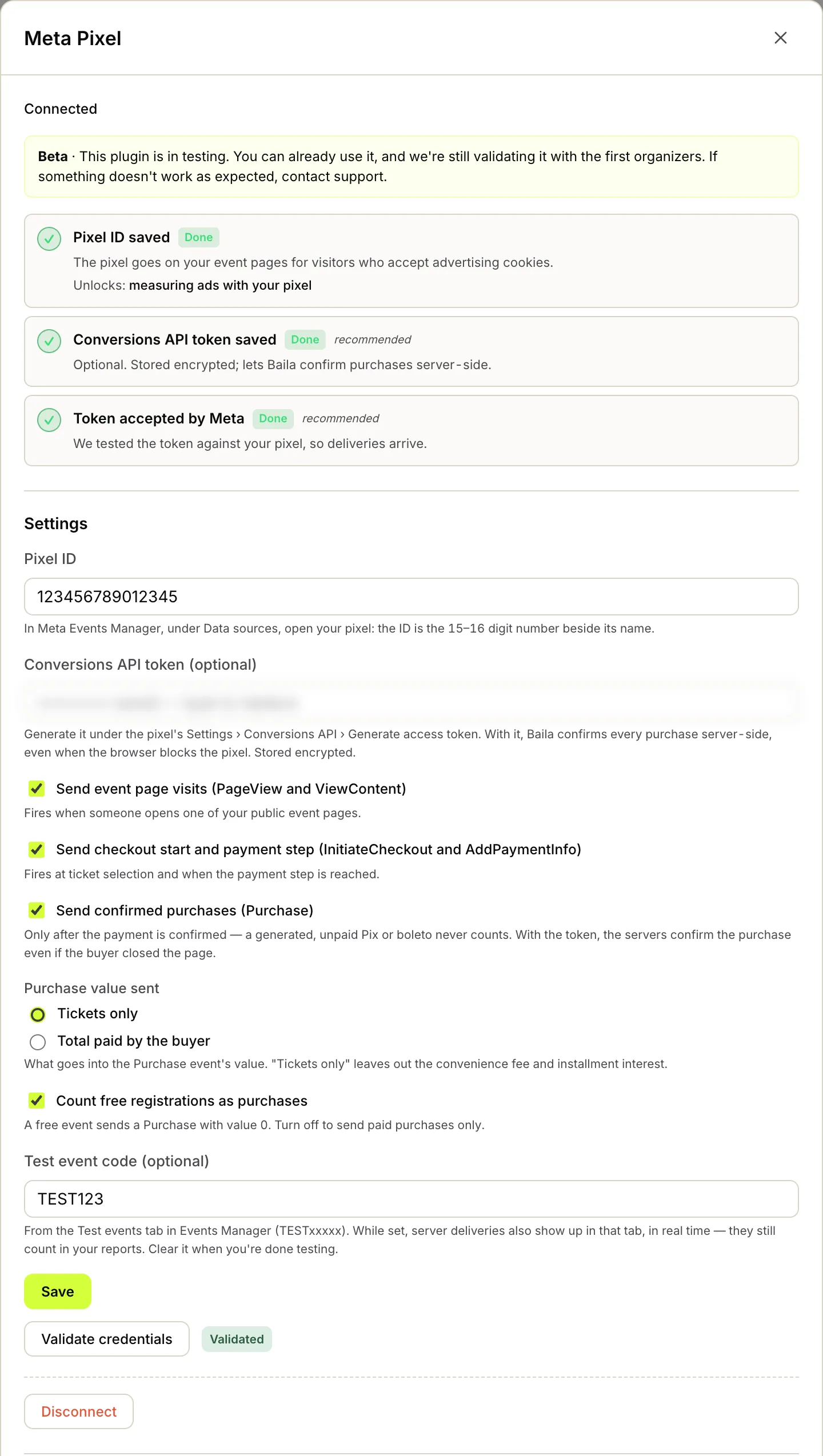
- The Meta Pixel window opens as Not installed. Under Settings, paste the number into Pixel ID.
- If you generated the token, paste it into Conversions API token (optional).
- Choose what to send. All three are on by default:
- Send event page visits (PageView and ViewContent);
- Send checkout start and payment step (InitiateCheckout and AddPaymentInfo);
- Send confirmed purchases (Purchase).
- Under Purchase value sent, choose Tickets only (selected by default) or Total paid by the buyer. The FAQ below explains the difference.
- Leave Count free registrations as purchases on if you want a free registration to count as a purchase, with value 0.
- Leave Test event code (optional) empty for now. It is for testing (see How to test).
- Click Save. You see Settings saved. If you pasted the token, Baila checks it with Meta right away and shows Meta accepted the token. Baila now confirms purchases server-side.
The window now shows Connected and three steps:
- Pixel ID saved · Done, with Unlocks: measuring ads with your pixel;
- Conversions API token saved · Done · recommended;
- Token accepted by Meta · Done · recommended.
Next to Validate credentials you see Validated. The token field is now empty and reads •••••••• saved — type to replace: the token is never shown back. To replace it, paste the new token and click Save. To check the token again at any time, click Validate credentials.
- Close the window. In the Ads group, the Meta Pixel card shows Beta, Connected and the Configure button, which opens the window again.
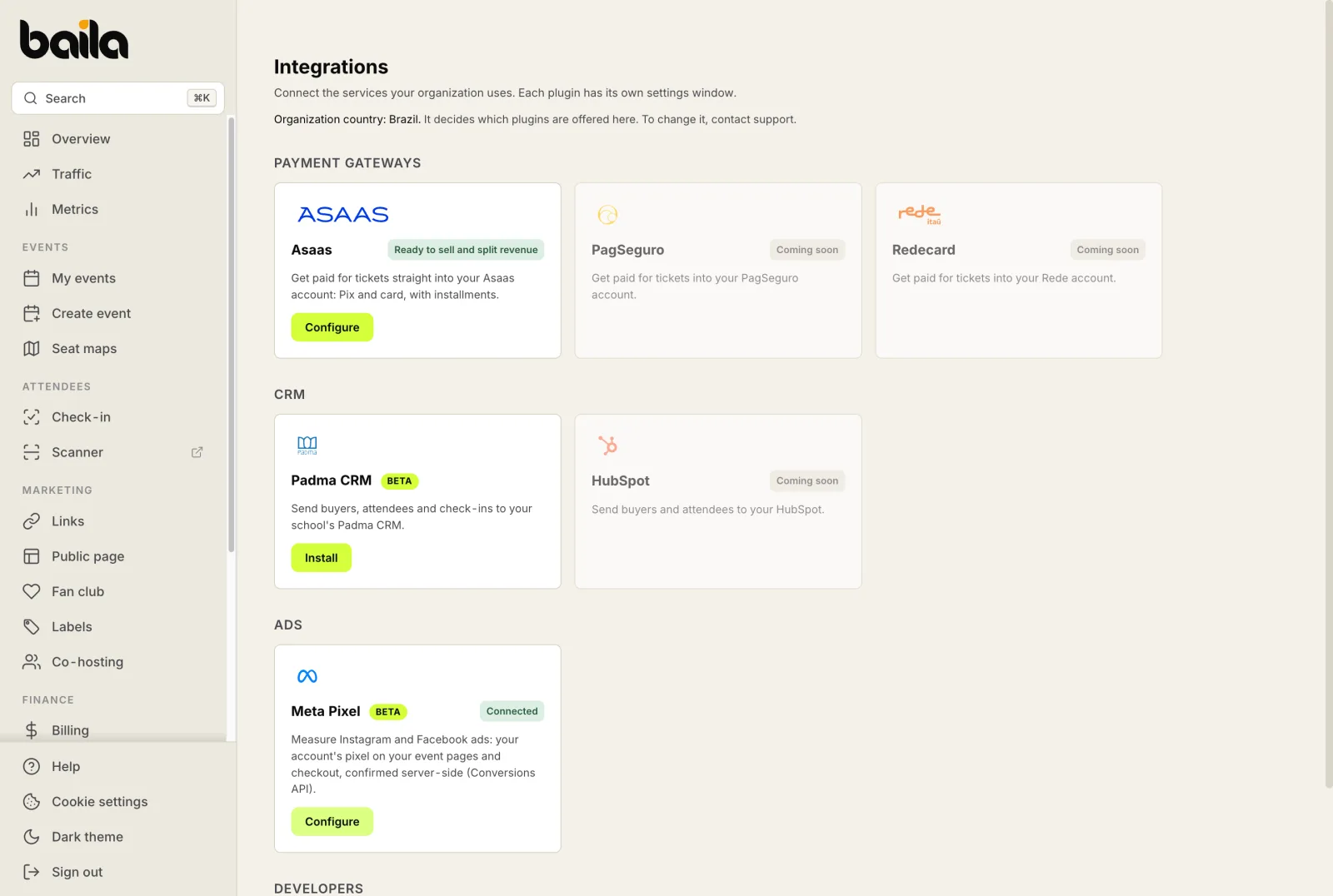
The token steps show as recommended: with only the pixel ID, the card already shows Connected and the pixel works from the browser. The token only adds the server-side confirmation of purchases.
If Meta refuses the token, the window shows Meta refused this token. Check that it was generated for this pixel and hasn't expired. and the Token accepted by Meta step shows Pending. The pixel keeps working from the browser. Generate a new token, paste it and click Save. If Meta doesn't answer, the window says the token wasn't checked and may be fine: click Validate credentials again shortly.
On a co-hosted event, the event owner's pixel is the one used.
What reaches Meta
| Moment | Event | Data |
|---|---|---|
| Someone opens one of your public event pages | PageView and ViewContent | The event: its Baila identifier and its name. |
| They pick tickets and open checkout | InitiateCheckout | The tickets picked (batch, quantity and price), the value at batch prices and the currency. |
| They reach the payment step | AddPaymentInfo | The same, with the total to pay, discounts and fees included. |
| The payment is confirmed | Purchase | The tickets, the value (tickets only or the total, as you chose), the currency and the order number. Server-side, also the buyer's e-mail, phone and name and an internal account identifier, hashed, the IP address, the browser and the _fbp and _fbc cookies. |
A purchase is sent only after the payment is confirmed. When the buyer generates a Pix, the pixel only gets the payment step (AddPaymentInfo). The Purchase goes out when the payment comes through and the screen shows Your purchase is approved. If the buyer has closed the page by then, the purchase reaches Meta from the servers only, which is why the token is worth adding.
Every event carries the Baila identifier of the event. In a series, each date has its own identifier: picking another date on the series page sends a ViewContent with that date's identifier.
Purchases made before you connect are not sent, and neither are refunds: Meta has no refund event.
Browser and server count once
With the token, each purchase reaches Meta twice, within seconds: from the buyer's browser and from Baila's servers. Both copies carry the same identifier, purchase: followed by the order number, and Meta counts the purchase once. Meta only matches the two copies within 48 hours, so Baila never sends the server copy after that. Visits and checkouts are sent from the browser only.
Consent
- The pixel loads only for visitors who accept the Advertising category in the Cookies at Baila notice: by clicking Accept all, or Customize and turning Advertising on. For anyone who clicks Reject all, or hasn't chosen yet, the pixel doesn't load and nothing about them is sent, not even from the servers.
- A browser with the Global Privacy Control (GPC) signal on never loads the pixel.
- Anyone who turns Advertising off under Cookie settings (in the footer) removes the pixel from the page and erases the
_fbpand_fbccookies. If that person had generated a Pix before and pays afterwards, the purchase is not sent from the servers. - In a Baila support session (when our team signs in as the buyer to help), the pixel doesn't load and nothing is sent.
- The organizer's pixel is listed in the Cookie policy, apart from Baila's own pixel, and the transfer is described in section 6 of the Privacy Policy.
Follow the deliveries
In the Meta Pixel window, below the settings, the Conversions API deliveries section shows what Baila's servers sent to Meta: only confirmed purchases from buyers who accepted advertising cookies, the 50 most recent. What the browser sends doesn't go through Baila: check it in Events Manager or with Meta Pixel Helper.
- The counters: Sent, Queued, Failed and Skipped.
- The list has the columns Moment (Purchase confirmed), Event, Status and When.
- The status is Sent, Queued, Failed or Skipped. Under Failed and Skipped you see the reason, for example Not sent: the buyer doesn't allow advertising cookies or deleted their account, the order was cancelled or refunded, or it didn't come from checkout.
- Refresh reloads the list.
- Resend failures only shows up when something failed, with the count in brackets, and queues the failures again, for example after you replace the token. A purchase older than 48 hours is not resent: it becomes Skipped, because it would count twice.
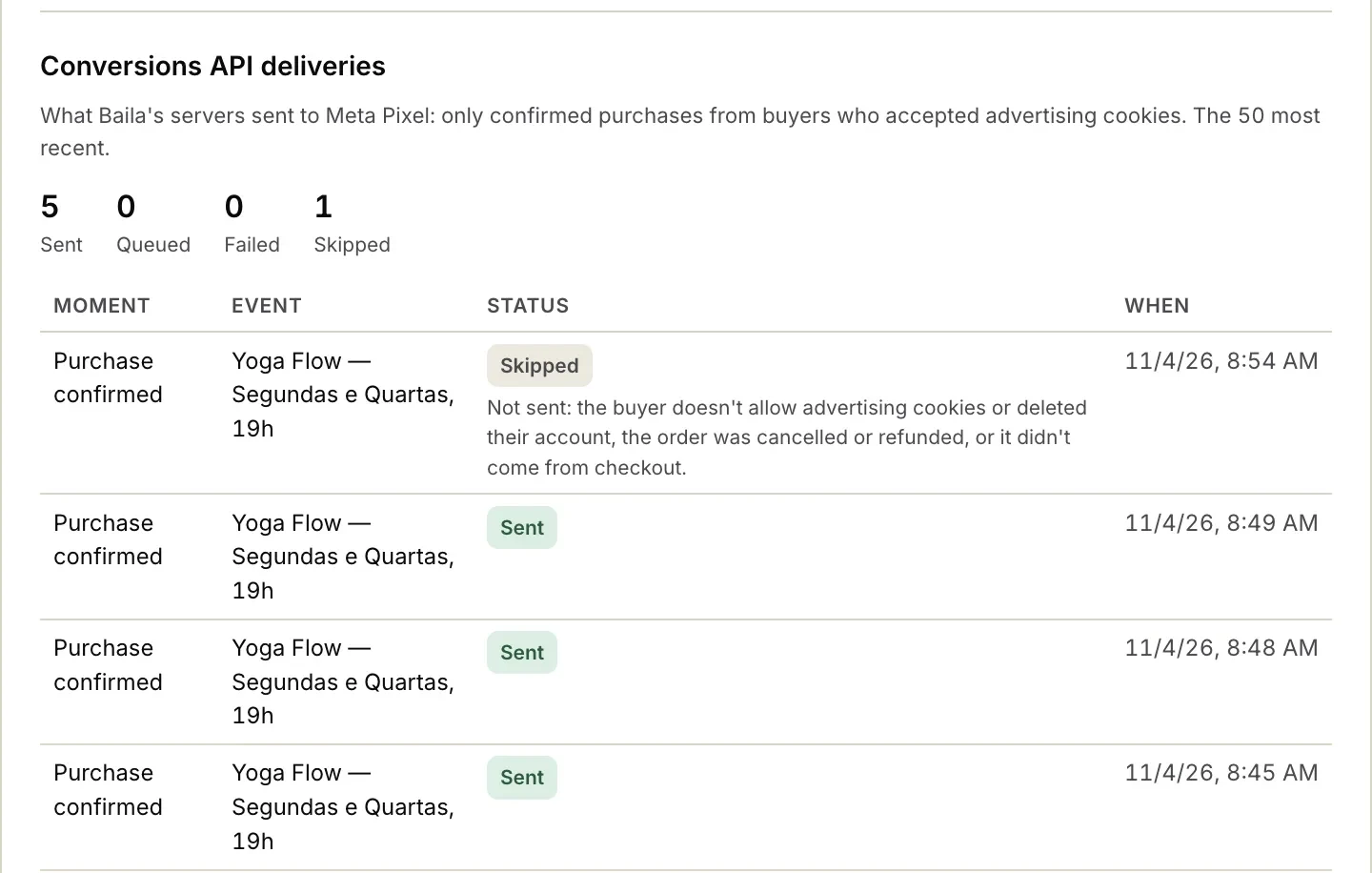
If Meta asks us to slow down, the section shows until when. Deliveries resume on their own.
How to test
- In Events Manager, open your pixel and the Test events tab. Copy the test code (something like
TEST12345). - In Baila, open the Meta Pixel window, paste the code into Test event code (optional) and click Save. While the code is set, server deliveries also show up in that Meta tab, in real time.
- In Chrome, install Meta's Meta Pixel Helper extension. It shows the events the browser sends to each pixel.
- Open one of your public event pages. In the Cookies at Baila notice, click Accept all. Meta Pixel Helper shows your pixel ID with
PageViewandViewContent. - Place a free registration, the quickest way (with Count free registrations as purchases on): pick a ticket, click Buy Ticket and Confirm, then Skip at the discount code and Confirm Order. When checkout opens, Meta Pixel Helper shows
InitiateCheckout. - On the Your purchase is approved screen, Meta Pixel Helper shows
Purchase, with the event IDpurchase:followed by the order number. - Within seconds, the same purchase shows up in the Test events tab from the server, with the same identifier. In Baila, click Refresh under Conversions API deliveries: the purchase shows as Purchase confirmed · Sent.
- Clear the test code and click Save when you're done.
Disconnect
To stop, open the Meta Pixel window and click Disconnect. Baila asks: Disconnect Meta Pixel? The pixel leaves your event pages, the token is erased and nothing more is sent. What Meta already received stays there. Click Disconnect again to confirm, or Cancel.
Then you see Meta Pixel disconnected. The pixel left your pages and deliveries stopped. The window goes back to Not installed and the card back to Install. The pixel ID, the token and the test code are erased, and what was queued is no longer sent. Your other choices (moments, value and free registrations) are kept: to come back, click Install, paste the pixel ID and the token again and check the options before saving.
Privacy
The data sent belongs to the visitors and buyers of your events. By installing the pixel, you are the controller of these transfers: you decide to install the pixel and you use the data in your own ad account, under your own legal basis. Baila only sends it on your behalf, as clause 4 of the Terms of Use and section 6 of the Privacy Policy say. So it is up to you to:
- tell attendees, in your privacy policy, that your event pages use the Meta pixel and the Conversions API;
- use this data under Meta's rules for advertisers;
- handle requests about what Meta already received, including the ones Baila forwards to you.
Server-side, the e-mail, phone, name and internal account identifier are sent hashed with SHA-256: Meta can only match them against data it already has, not read them. CPF and payment data are never sent. The buyer's IP address, browser and cookies are kept on Baila for only 3 days after the purchase, for the delivery.
In Events Manager, we recommend keeping automatic advanced matching off for this pixel. When it is on, Meta's code can read form fields in the buyer's browser. Baila already sends contact data hashed from its servers, and only for buyers who accepted advertising cookies.
Every token or settings change, and every disconnection, is recorded under Activity in the sidebar (under Settings), with who made it.
Frequently asked questions
Why don't sales in Baila match Ads Manager? Baila counts every order. Meta only receives the purchases of buyers who accepted advertising cookies: anyone who refused them is never sent, neither from the browser nor from the servers. An ad blocker stops the pixel in the browser; with the token, the servers still send the purchase of buyers who accepted the cookies, which covers part of that gap. On top of that, Ads Manager only credits an ad with the purchases it links to that ad, within your account's attribution window, and a purchase that didn't come from an ad doesn't show up in the campaign results.
Does a generated Pix or boleto count as a purchase? No. Generating the Pix only sends the payment step (AddPaymentInfo). The Purchase goes out when the payment is confirmed. A Pix or boleto that is never paid never reaches Meta as a purchase.
Do I need the Conversions API token? It isn't required: with only the pixel ID, the card shows Connected and the pixel works from the browser. Without the token, a purchase only reaches Meta if the buyer's browser sends it: with an ad blocker, or with the page closed before the payment comes through, it is lost. With the token, Baila's servers send it too, and Meta counts it once.
Can I use the same pixel as on my own website? Or in more than one organization? Yes. Each organization connects one pixel, which applies to all its events. It can be the same pixel you use on your website, and the same ID can be connected in more than one organization. To tell the events apart, use the event identifier: every event Baila sends carries the Baila identifier of the event (content_ids), and with it you can create a custom conversion for one specific event in Events Manager. Baila's own pixel can't be used.
Which value is sent with the purchase? Tickets only sends the value of the tickets after the discount code and the member discount, without the service fee and installment interest. Total paid by the buyer sends what the buyer paid. For example, a R$ 30.00 ticket with a 10% member discount and a R$ 1.08 service fee sends 27 with Tickets only and 28.08 with Total paid by the buyer. With no fee and no interest, both give the same value. The choice applies to both the browser and the servers.
What about free registrations? With Count free registrations as purchases on, a free registration sends a Purchase with value 0, from the browser and from the servers. With it off, no purchase is sent, but the page visit and the checkout start are still sent.
How do I know it's working? In the Meta Pixel window: Connected, the three steps Done and Validated next to Validate credentials. On one of your event pages, after accepting the cookies, Meta Pixel Helper shows your pixel ID. After a confirmed purchase, Conversions API deliveries shows Sent. To see the events arrive at Meta, follow How to test.
What happens when I click Disconnect? The pixel leaves your event pages right away, the pixel ID, the token and the test code are erased from Baila and nothing more is sent, not even what was queued. What Meta already received stays there. Your other choices are kept for when you connect again (see Disconnect).
Do I need to mention the pixel in my privacy policy? Yes. The pixel is yours and you are the controller of this data: say in your privacy policy that your event pages use the Meta pixel and the Conversions API (see Privacy).
Related articles
How to connect Padma CRM to Baila
Step by step to send your school's Padma CRM the people who buy tickets, the attendees you import and the check-ins from your events.
How to issue NFS-e invoices automatically with Asaas
Turn on automatic NFS-e issuing under Integrations › Asaas › Invoices. For every paid ticket order or fan-club charge, Asaas issues the invoice on behalf of your company and sends it to the buyer.