How to connect Padma CRM to Baila
Step by step to send your school's Padma CRM the people who buy tickets, the attendees you import and the check-ins from your events.
This is done in the organizer dashboard
If your school uses Padma CRM, Baila can send it the people from your events. Each person becomes a contact in Padma, and each moment (purchase, registration, check-in) is recorded on their timeline. When the school already has a contact with the same e-mail or phone, Padma uses that contact instead of creating another.
Padma CRM is in Beta on Baila: you can already use it, and we're still validating it with the first schools. If something doesn't work as expected, contact support.
Before you start
- You need the Install and configure integrations (CRM, ads) permission. The owner, administrator and manager roles already have it.
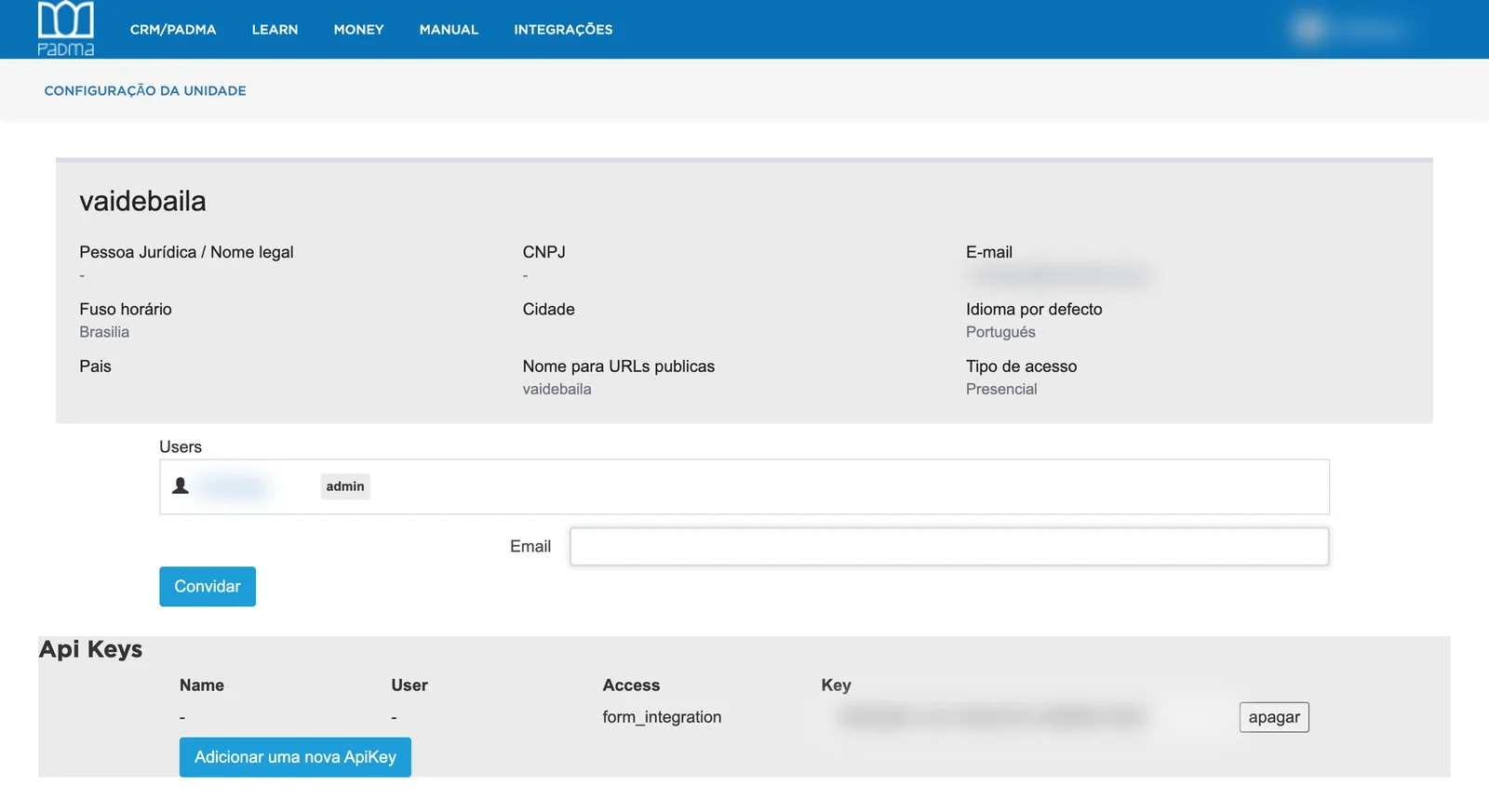
- You need a Padma API key with form_integration access. To create one: sign in at accounts.padm.am, open your school's settings and, under Api Keys, click Adicionar uma nova ApiKey ("Add a new ApiKey"). The key shows in the Key column: copy all of it. If you can't see the option, ask Padma support ([email protected]).
Step by step
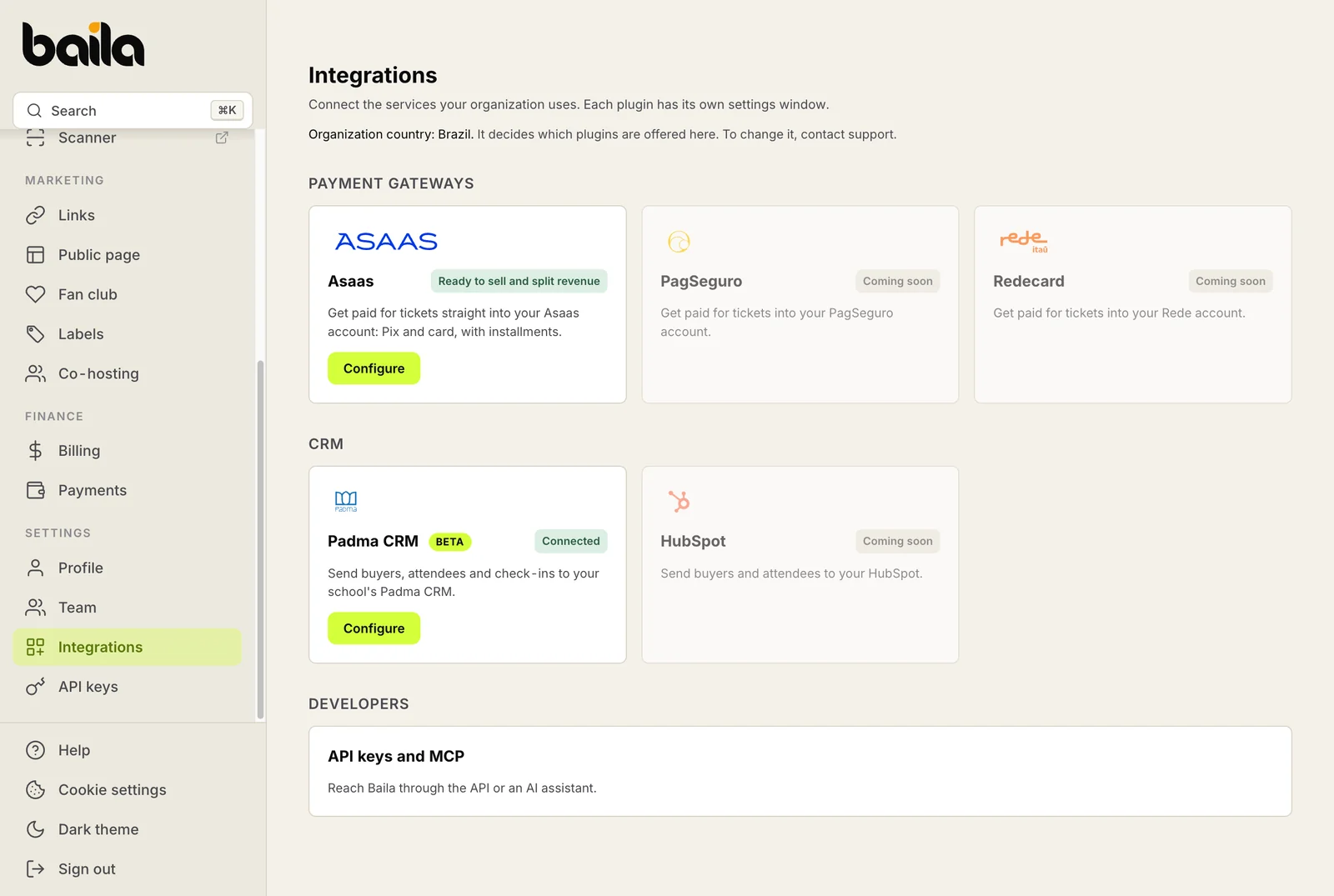
- Open Integrations in the sidebar.
- Under CRM, click Install on the Padma CRM card.
- Paste the key into Padma API key.
- Choose what to send: confirmed purchases, imported attendees and check-ins. One, some or all of them.
- Click Save. Baila checks the key right away. Once Padma accepts it, the window shows Connected and both steps show Done.
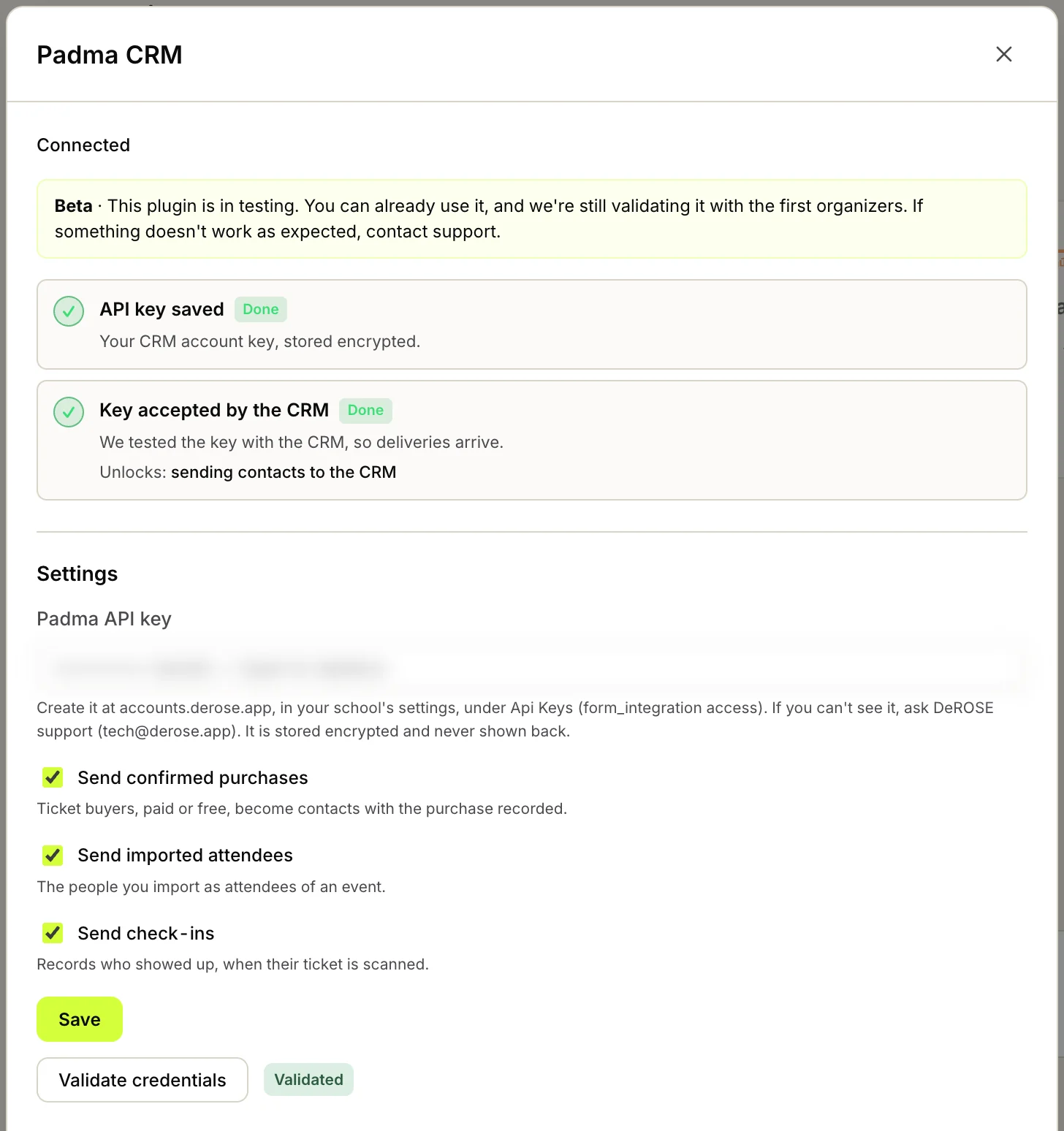
A key you just created may be refused for the first few minutes. If that happens, sign in to Padma CRM once with your own account, wait a few minutes and click Validate credentials.
What reaches Padma
| Moment | What is recorded |
|---|---|
| Purchase confirmed (paid or free) | The purchase, with the event, its date and the number of tickets. |
| Attendee imported | The same, as a registration made by the organizer. |
| Check-in | That the person attended the event. |
A new contact comes in as a prospect, with the baila tag and the marketing method Baila, which shows in the school's statistics. Each moment becomes a communication, recorded by Padma's system user and dated when it arrives.
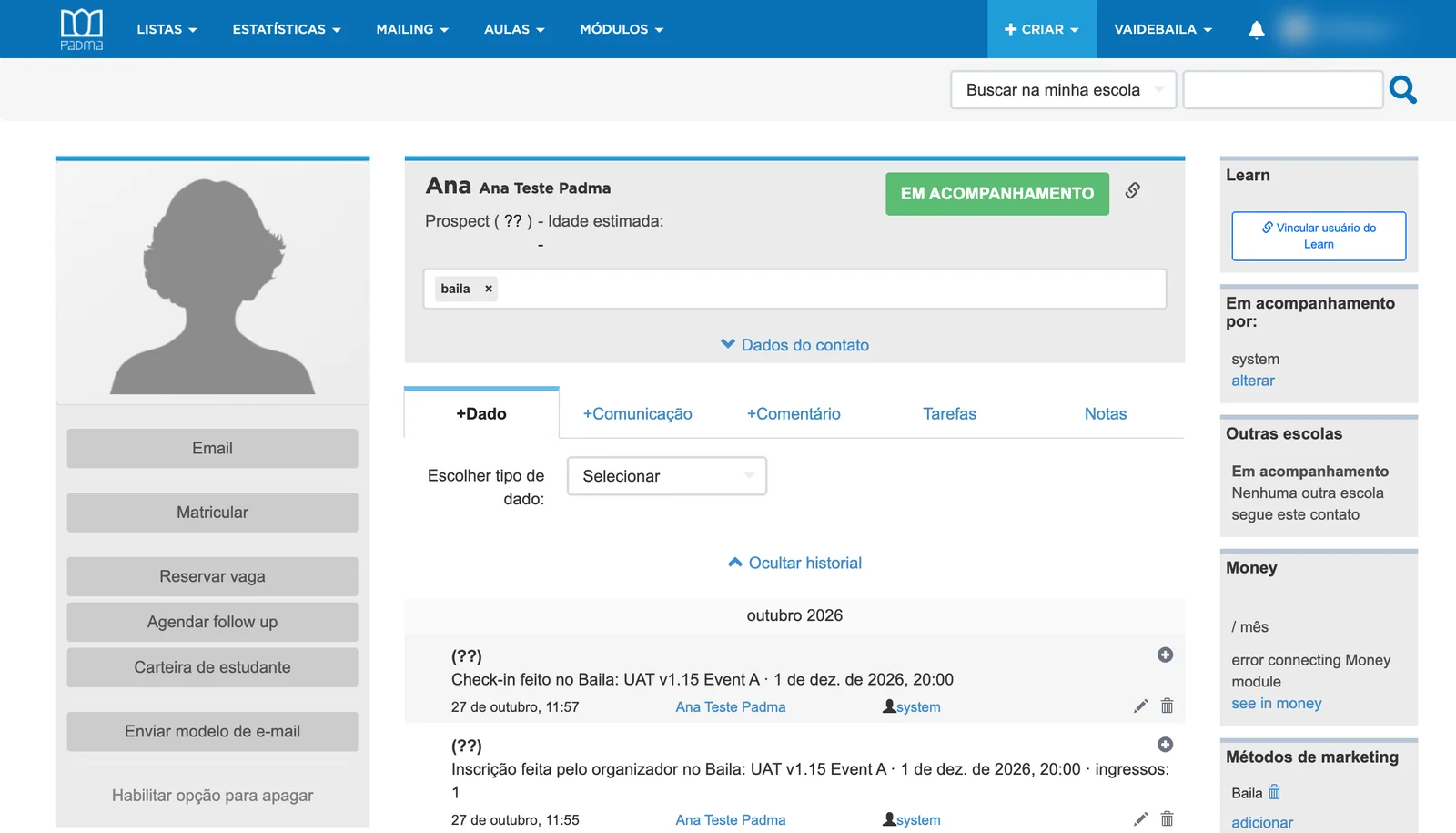
The texts arrive in the event's language, with the date in the event's time zone.
Only moments that happen after you connect are sent, and refunds never are: Padma would count each one as an interaction dated today in the school's statistics. That is why Sync history is disabled.
Follow the deliveries
In the Padma window, the Sent to the CRM section shows how many deliveries went through, how many are queued and how many failed, plus the 50 most recent. Resend failures queues what failed again, for example after you fix the key.
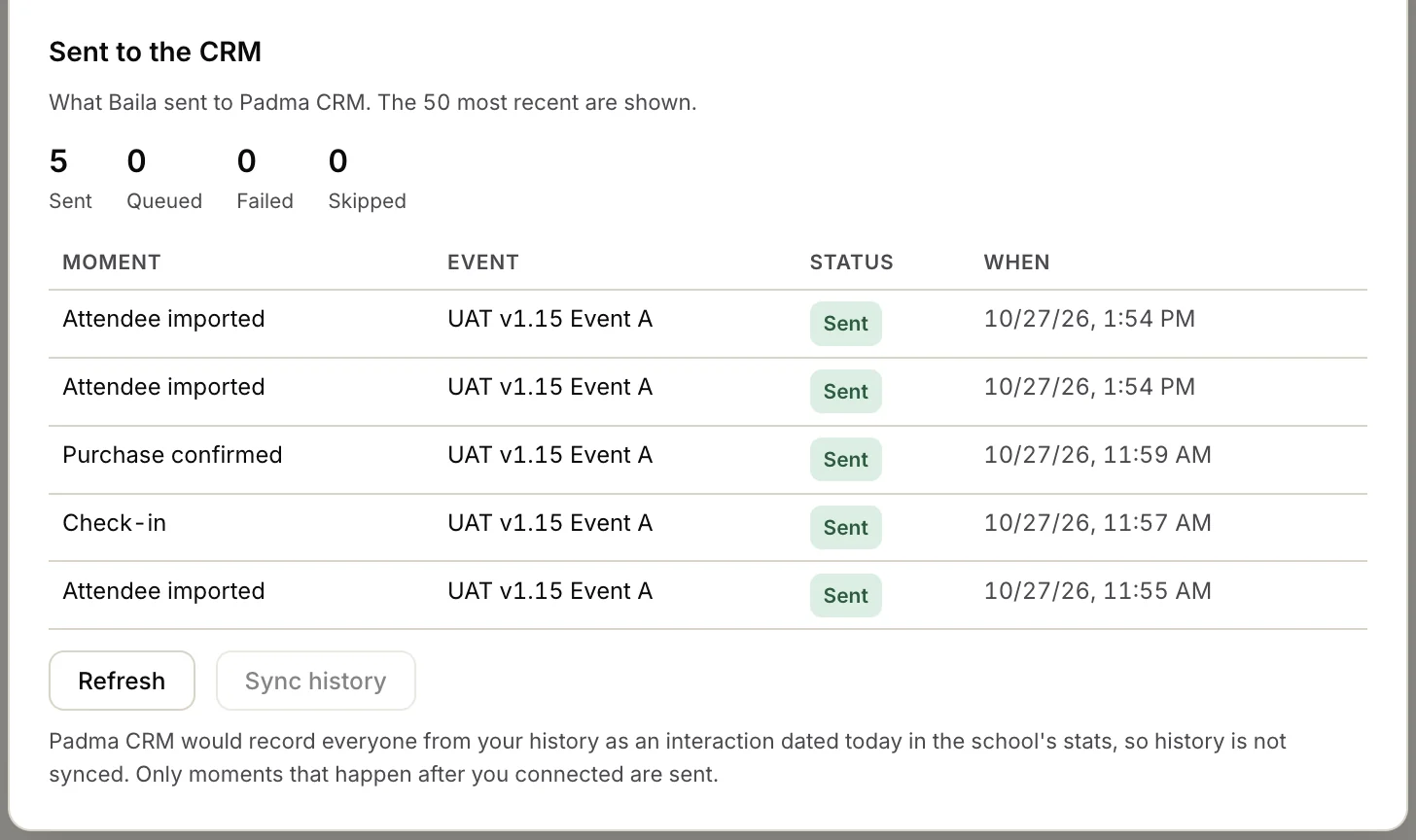
If Padma asks us to slow down, the section shows until when. Deliveries resume on their own.
If Padma refuses the key, deliveries show as failed and the card goes back to Setup incomplete. Fix the key, save, and click Resend failures.
Disconnect
To stop sending, open the Padma window, click Disconnect and confirm. The key is erased from Baila right away and nothing more is sent, not even what was queued. What already reached Padma stays there: to delete it, use Padma itself. Your choice of moments is kept; to come back, click Install and paste a key again.
Privacy
The data sent belongs to the attendees of your events: the name, e-mail and phone of people who bought or checked in. For people you imported, only the name and e-mail you typed are sent. By switching the integration on, you are the controller of these transfers, and Baila only sends them on your behalf, as clause 4 of the Terms of Use and section 6 of the Privacy Policy say. So it is up to you to:
- tell attendees, in your privacy policy, that their data goes to your school's Padma;
- handle in Padma the access, correction, deletion and objection requests attendees make, including the ones Baila forwards to you.
People who deleted their Baila account are never sent. What was already in Padma stays there until you delete it.
Every key or settings change is recorded in the Activity tab of the Team page, with who made it.
Related articles
How plugins work in Integrations
The Integrations page gathers the services your organization connects to Baila — today, the Asaas payment gateway — and the Payments page shows what is still missing.
How to connect the Meta pixel to Baila
Step by step to measure your Instagram and Facebook ads with your own pixel on your event pages and checkout, with purchases also confirmed server-side (Conversions API).