How to export the attendee list as CSV
Download or receive by e-mail the list of everyone going to your event, one row per ticket or per order, ready to open in Excel or Google Sheets.
This is done in the organizer dashboard
Need the attendee list in a spreadsheet to check names at the door, send it to your team or match it against another list? From the event page you export every attendee as a CSV, right away, in the browser or by e-mail.
Where it lives
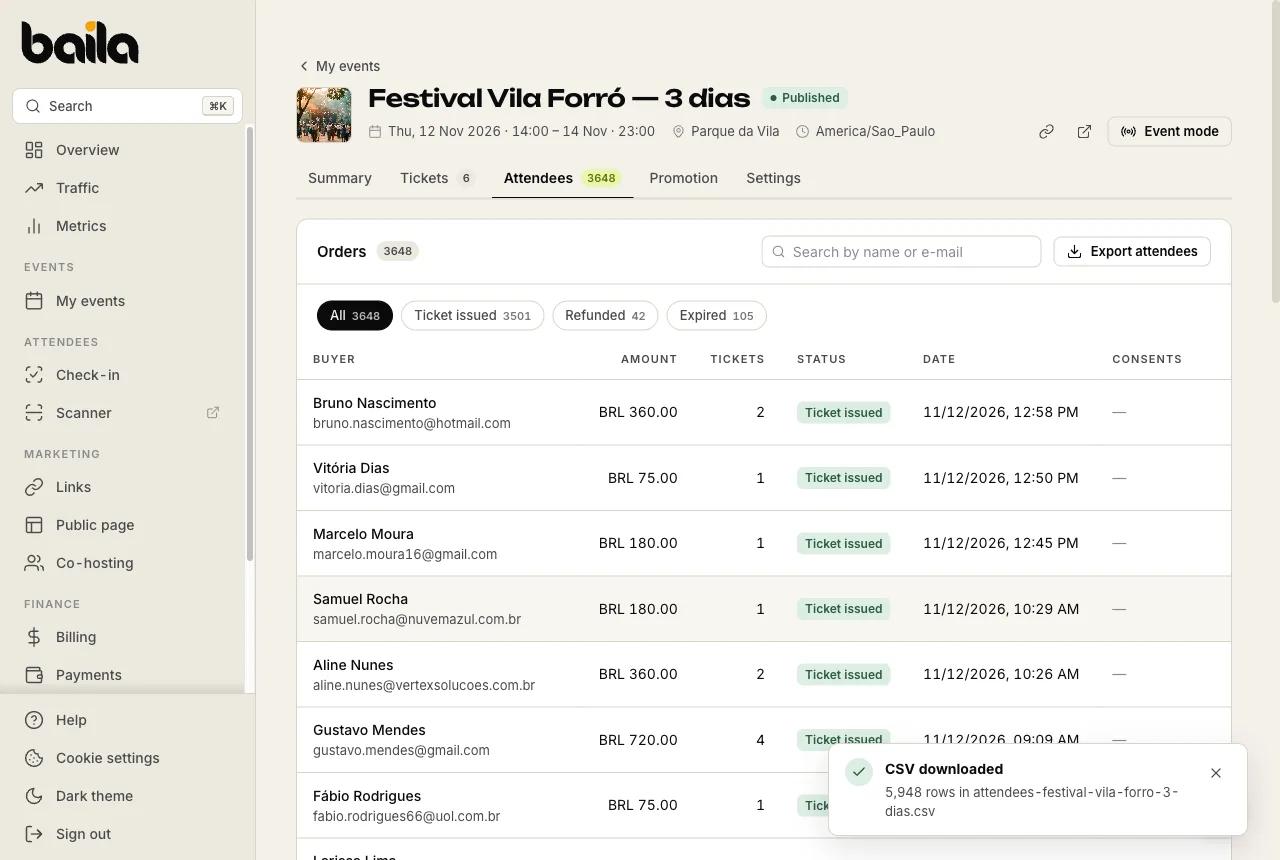
On the event page, on the Attendees tab, the Export attendees button next to the order search.
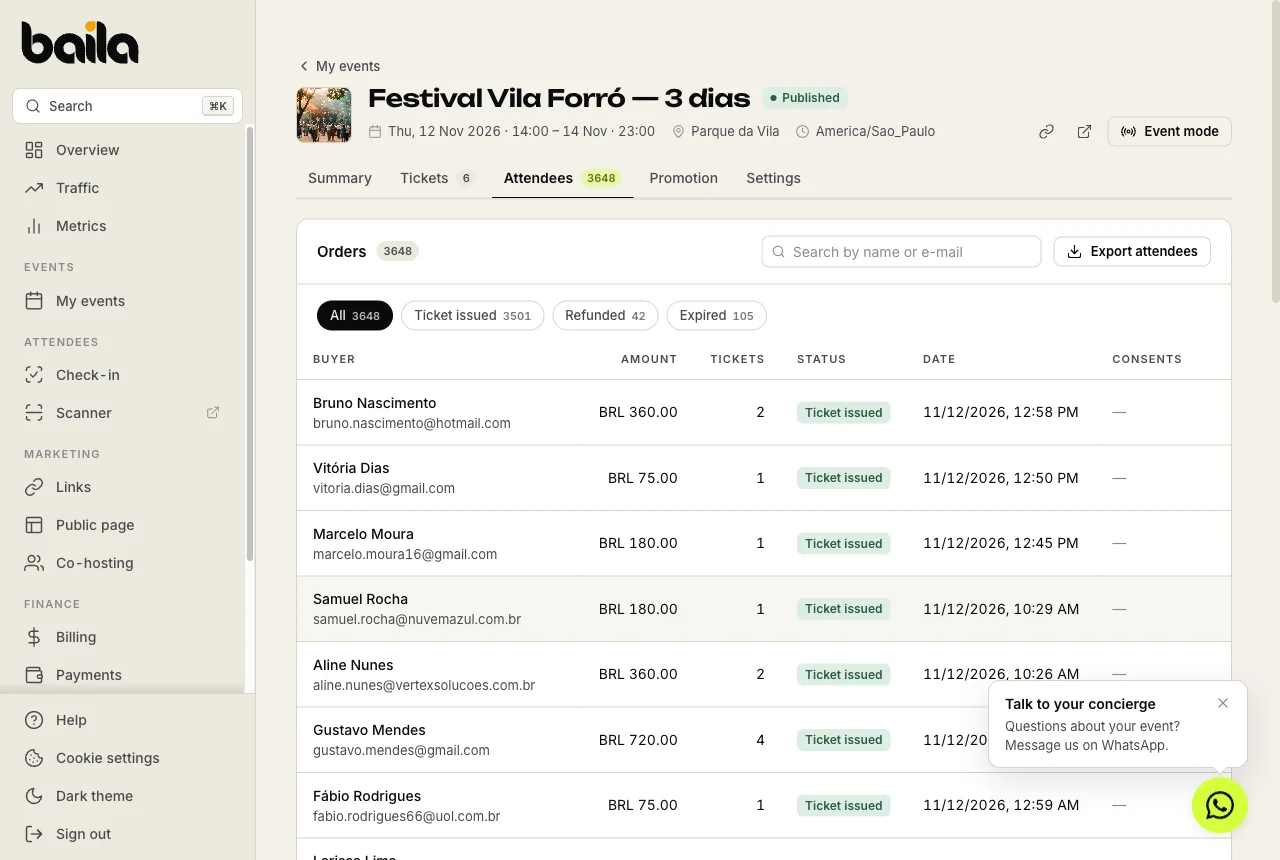
The button shows for members allowed to see the event's orders. Members who only do check-in at the door don't see it and can't download the list.
Export
Click Export attendees.
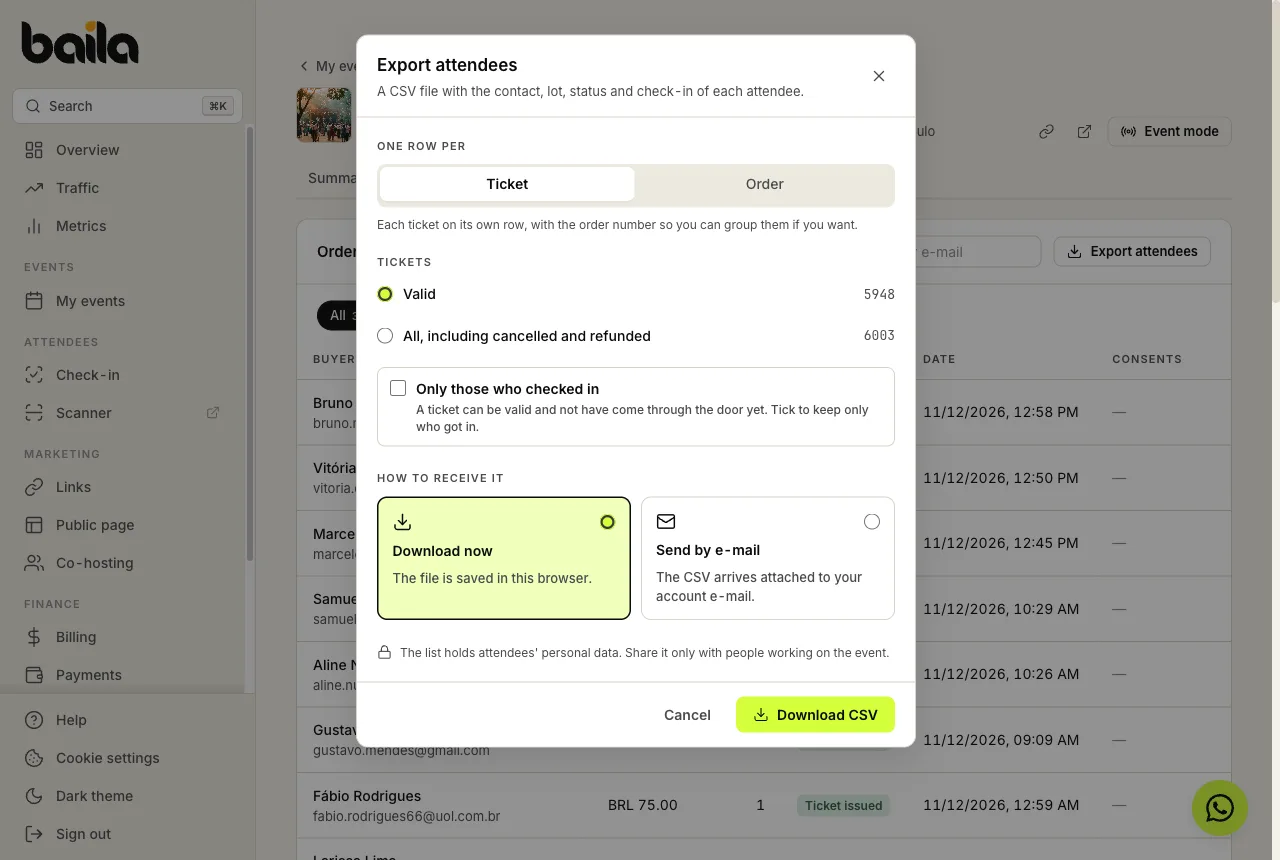
Under One row per, pick:
- Ticket (default): each ticket on its own row, with the order number so you can group them if you want. This is the format for checking names at the door.
- Order: each purchase on its own row, with the number of tickets, the lots and how many already checked in.
Pick which tickets go in: Valid (default) or All, including cancelled and refunded. To keep only the people who got in, also tick Only those who checked in: a ticket can be valid and not have come through the door yet. The number next to each option is how many rows the file will have, with that box taken into account.
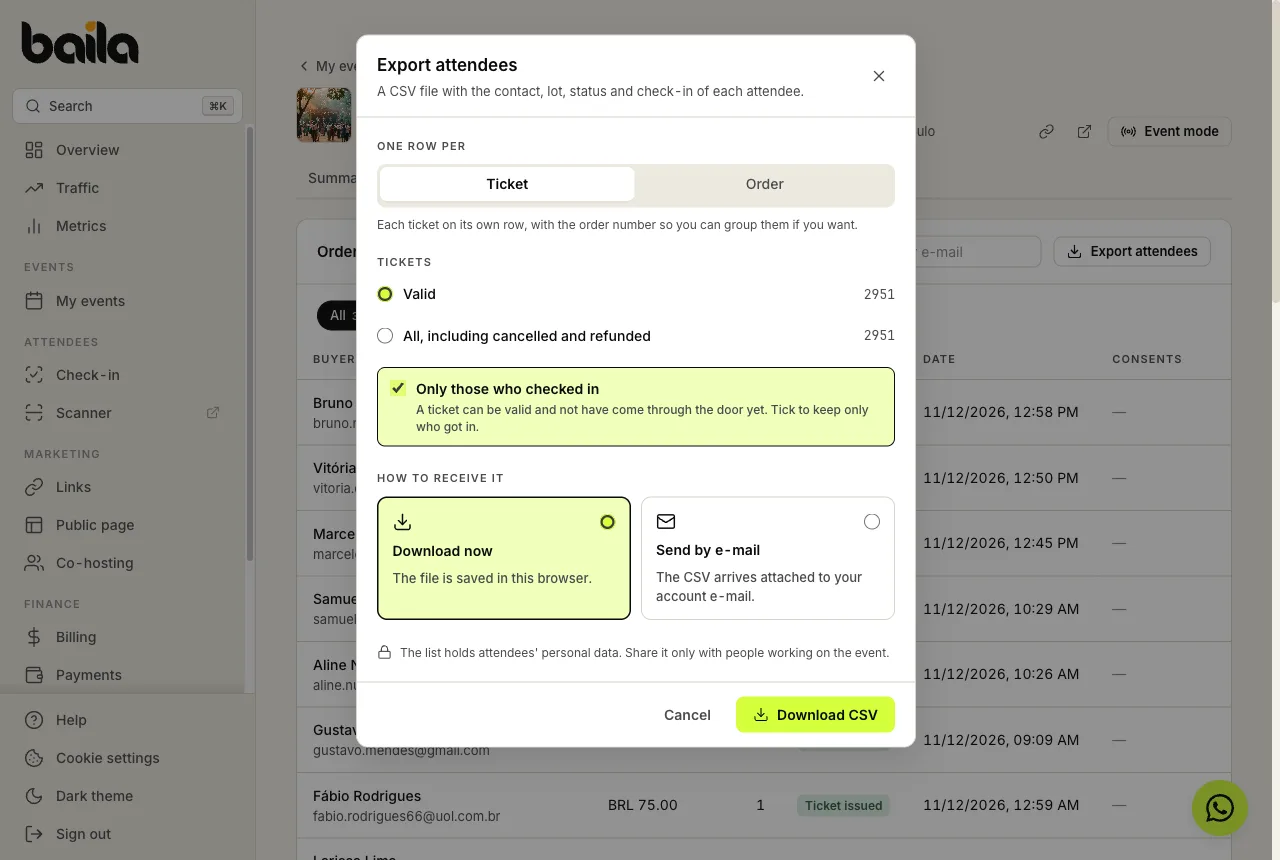
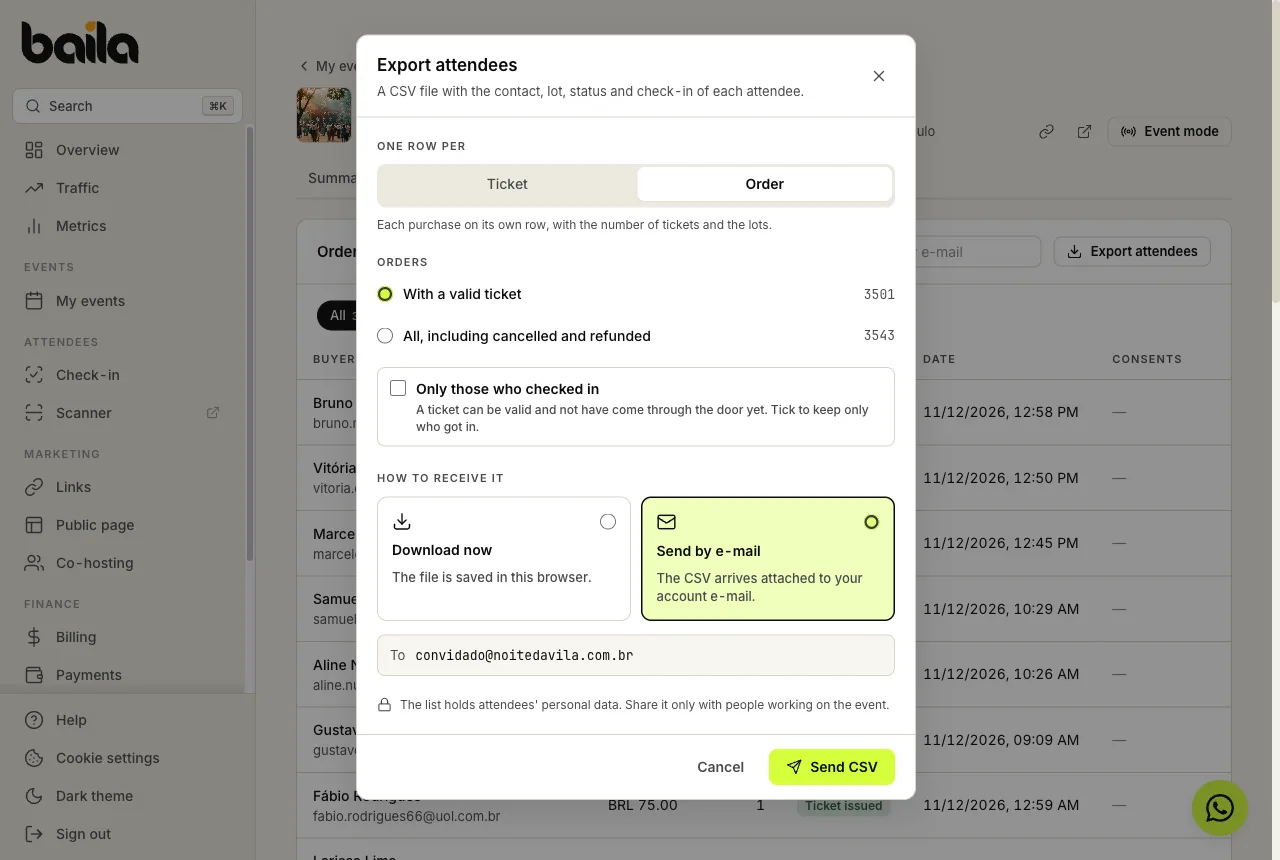
Under How to receive it, pick Download now (the file is saved in this browser) or Send by e-mail (the CSV arrives attached to your account's e-mail) and click Download CSV or Send CSV.
When it's done, a confirmation shows how many rows the file has and its name, or the e-mail address we sent it to.
What's in the file
One row per ticket: holder, e-mail, phone, order, lot, seat (on events with assigned seating), ticket status, check-in time, ticket code, purchase date, source (sale or imported) and coupon.
One row per order: buyer, e-mail, phone, order, order status, number of tickets, lots (for example, 2× General, 1× VIP), check-ins (for example, 1 of 3), amount paid, currency, purchase date, source and coupon.
- The holder is whoever has the ticket today: if a ticket was transferred, you see the person who received it.
- Dates and times are in the event's time zone, named in the column header.
- The file opens straight in Excel and Google Sheets with accents intact. In English, columns are separated by
,and amounts use a decimal point.
FAQ
Can I export from my phone? Yes. The dashboard works in your phone's browser. If downloading on the phone is awkward, pick Send by e-mail and open the attachment in your e-mail app. The Baila app is for door check-in and doesn't export lists.
Can I send the file to another e-mail address? No. The CSV always goes to your account's e-mail, because the list holds attendees' personal data. Once you have it, forward it only to people working on the event.
The number in the window doesn't match the tab's order total. Why? The window counts only what goes into the file. Orders that never issued a ticket (expired or declined payments) are left out. With Valid, cancelled and refunded tickets are left out too.
How do I know who actually came? Tick Only those who checked in. The file holds only the tickets scanned at the door, with the check-in time. With All, people who got in and were refunded afterwards are included too. Export after the event (or during it, for a partial count). To see the opposite (people who bought but didn't come), use Download no-show list in the event report.
Does the list update itself? No. The file shows the moment it was generated. Sales, transfers and check-ins made afterwards are not in it. For the current version, export again.
Why does the phone show up with an apostrophe, like '+5511…?
It's a safeguard: spreadsheets run any cell that starts with +, =, - or @ as a formula. The apostrophe keeps the whole number as text.
Someone on the team exported the list. Can I see who? Yes, as the Owner. Every export is recorded in the Activity log, with who exported it, how many rows and whether it was a download or an e-mail.
How to import attendees who paid outside Baila
Register people who paid in cash or by other means, e-mail them their QR codes, and check them in as usual.
Event report: who came, who didn't and how sales went
After your event, see attendance, no-shows by lot, arrivals at the door, revenue and page conversion, and download the list of people who didn't come.