How to set up shipping, pickup and the shop on your public page
Set one flat shipping fee per order, choose Pickup or Shipping for each product, write where to pick up and show your catalog on your public page.
This is done in the organizer dashboard
Each product can be delivered in two ways: Pickup, when the buyer collects it in person with the order code, and Shipping, when they give an address and pay the shipping fee. Baila doesn't handle logistics: you pack and deliver. The shipping fee and the rules for your whole catalog live under Products > Sales settings.
How to set the shipping fee
Under Products, open the Sales settings tab (or go to dashboard.vaidebaila.app/products/settings).
Under Freight, fill in the Freight amount, the shipping fee buyers pay. It is a flat amount, charged once per order when the buyer picks shipping for any product, no matter how many items the order has. Use 0.00 for free shipping.
Click Save.
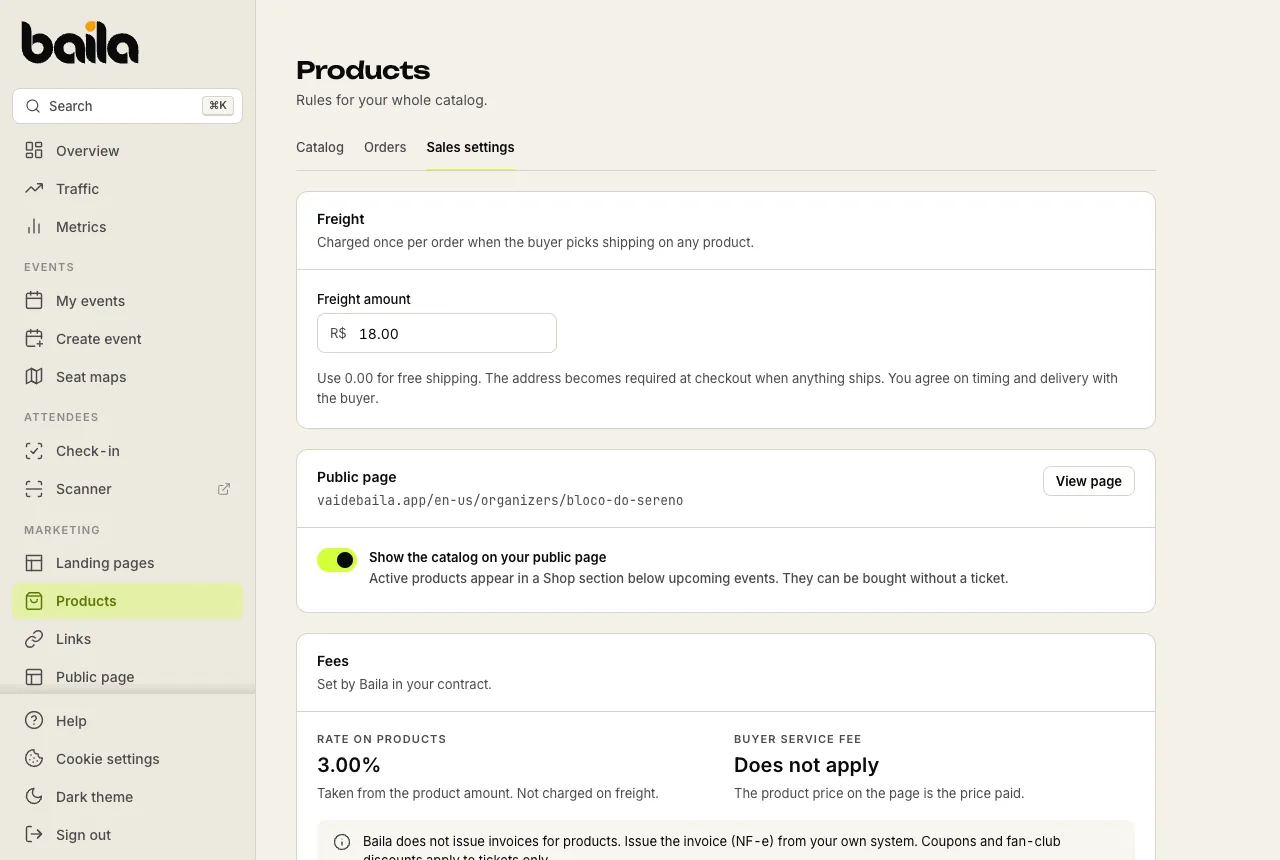
When any product on the order ships, the address becomes required at checkout. You agree on timing and delivery directly with the buyer.
Pickup or shipping for each product
In the product editor, the Delivery section has two switches. Turn on one or both; a product needs at least one.
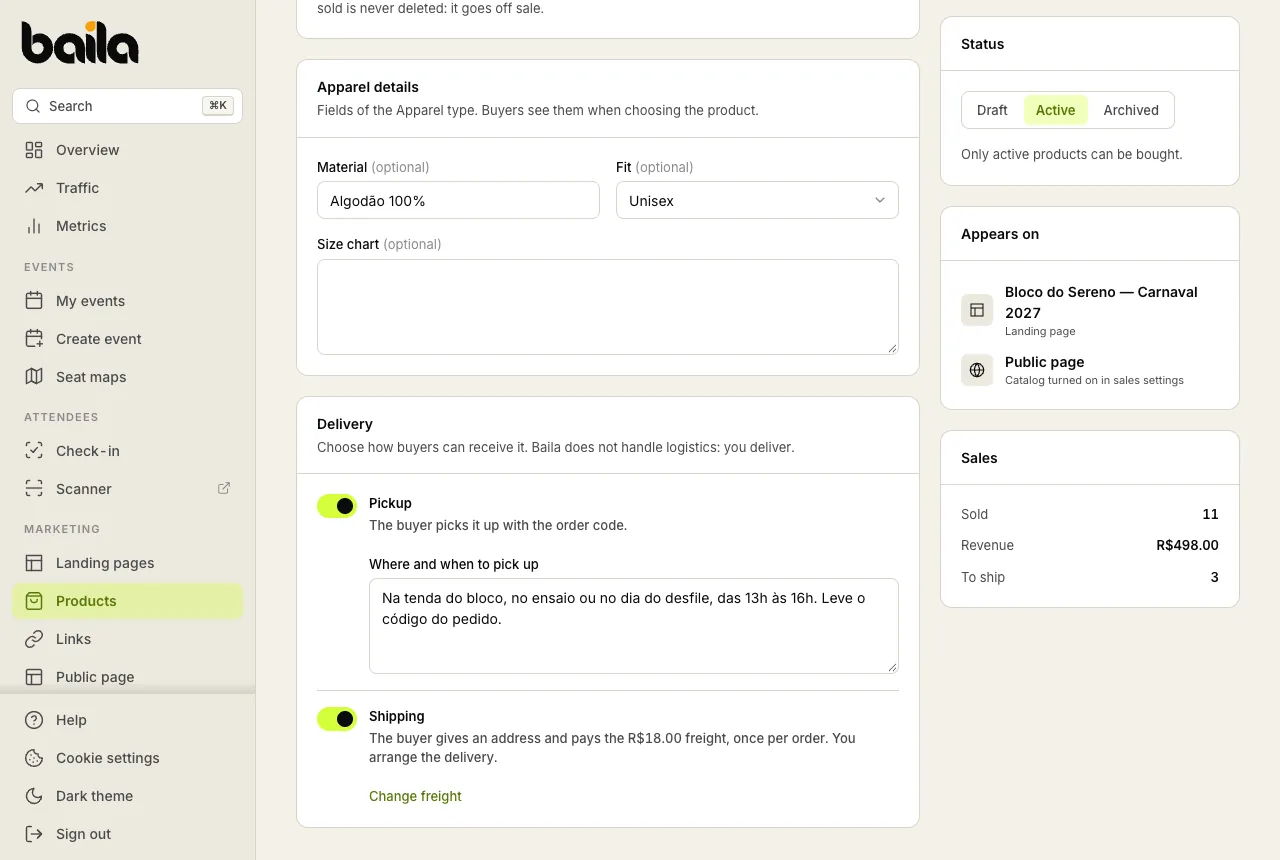
- Pickup: the buyer picks it up with the order code. Under Where and when to pick up, write the place and the hours, for example: "At the group's tent, at the rehearsal or on parade day, 1 to 4 pm. Bring your order code." This text shows to the buyer when choosing the product, in the checkout summary and on the order page.
- Shipping: the buyer gives an address and pays the shipping fee from your sales settings. Change freight takes you there.
With both on, the buyer chooses at checkout: Pick up in person or Delivered to you.
Products that come with a ticket (such as a race kit) are always picked up in person, so they need Pickup turned on. See items included in a ticket tier.
Show your catalog on your public page
Under Public page, turn on Show the catalog on your public page. Active products appear in a Shop section below your upcoming events, and they can be bought without a ticket. View page opens your page so you can check it.
Only organization admins can change this setting. To build a page for one campaign, with the events and products you pick, use a landing page.
Fees and invoices
The Fees section shows what applies to products under your contract:
| Item | How it works |
|---|---|
| Rate on products | A percentage taken from the product amount, set by Baila in your contract. It does not apply to the shipping fee. |
| Buyer service fee | Does not apply: the product price on the page is the price paid. The service fee, when you use one, applies to tickets only. |
Baila does not issue invoices for products: issue the invoice (the Brazilian NF-e) from your own system. Discount coupons and fan-club discounts apply to tickets only.
Frequently asked questions
Is shipping charged per product? No. It is one amount per order, charged when at least one product ships. If the buyer gets two t-shirts and a mug delivered, they pay the shipping fee once.
Can I charge a different shipping fee per region? No. The shipping fee is a flat amount for every order. If you need to, set it to cover your average delivery, or use 0.00 and arrange it with each buyer.
Can I change the shipping fee while sales are running? Yes. The new amount applies to the next orders; orders already paid don't change.
Related articles
How to include a catalog item in a ticket tier (kit, t-shirt)
Make every ticket of a tier come with a t-shirt, a kit or another catalog item. The buyer picks the size for each ticket and picks the item up in person.
How to sell tickets and products on the same order
Buyers buy a ticket and a t-shirt in one payment, or products alone. See what they see at checkout and where you find the orders, the address and the pickup.