How to create a landing page for your campaign
Build one page per campaign, with a cover, dates, products, a gallery and FAQs, at an address of your own. Buyers get tickets and products in one cart.
This is done in the organizer dashboard
A landing page is one page per campaign, at an address of your own on Baila (such as vaidebaila.app/sereno-carnaval-2027). You build it from blocks: a cover, text, the dates of your events, products from your catalog, a gallery, a video, sponsors and FAQs. Whoever opens the page picks tickets for one date plus products and pays for everything in one cart.
Use it for a carnival group's season, a run club's race calendar or a festival with several dates: everything you want to promote behind one link.
Before you start
Products and landing pages are available once product sales are turned on for your account.
Where to find landing pages
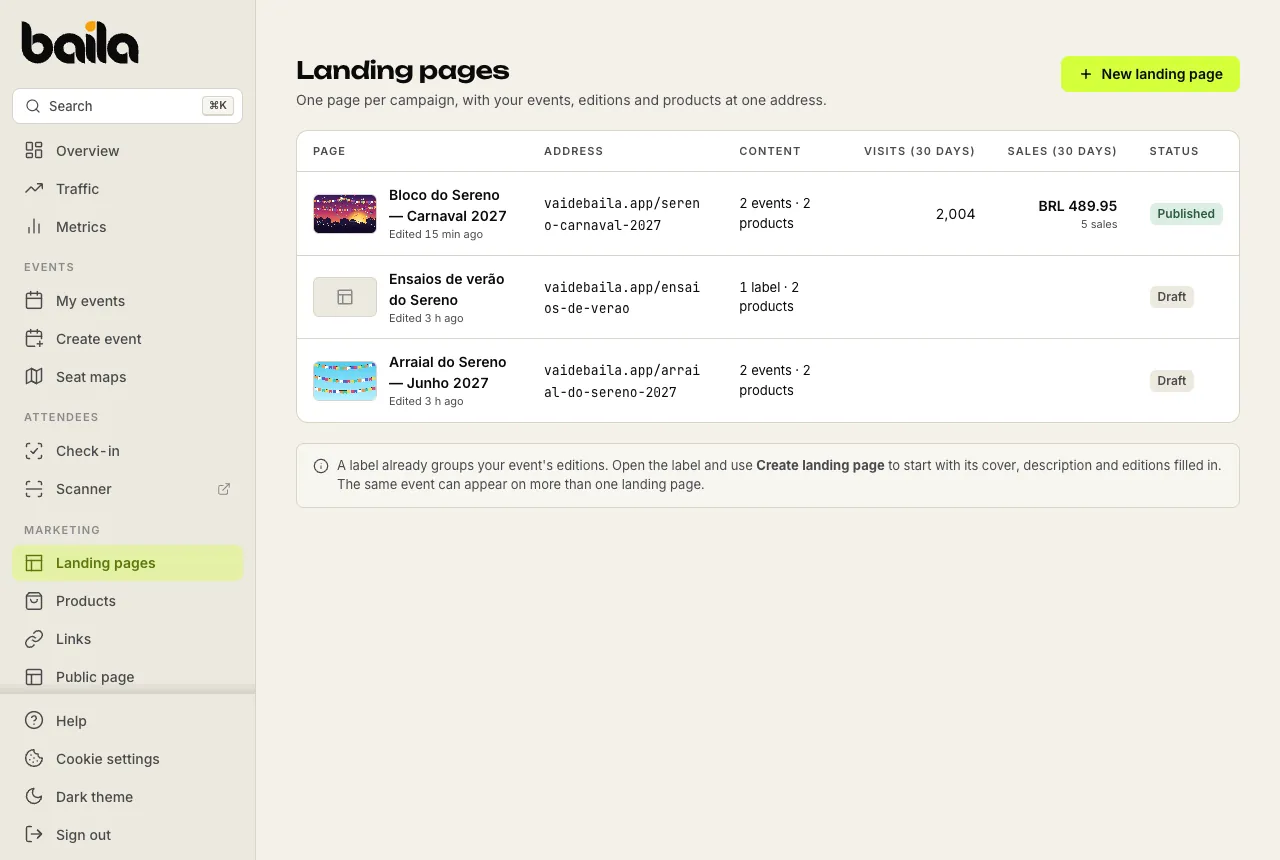
In the side menu, under Marketing, click Landing pages (or go to dashboard.vaidebaila.app/landing-pages). The list shows each page with its address, content, visits and sales over the last 30 days, and its status (Draft or Published).
How to create a landing page
You can start from scratch or from a label.
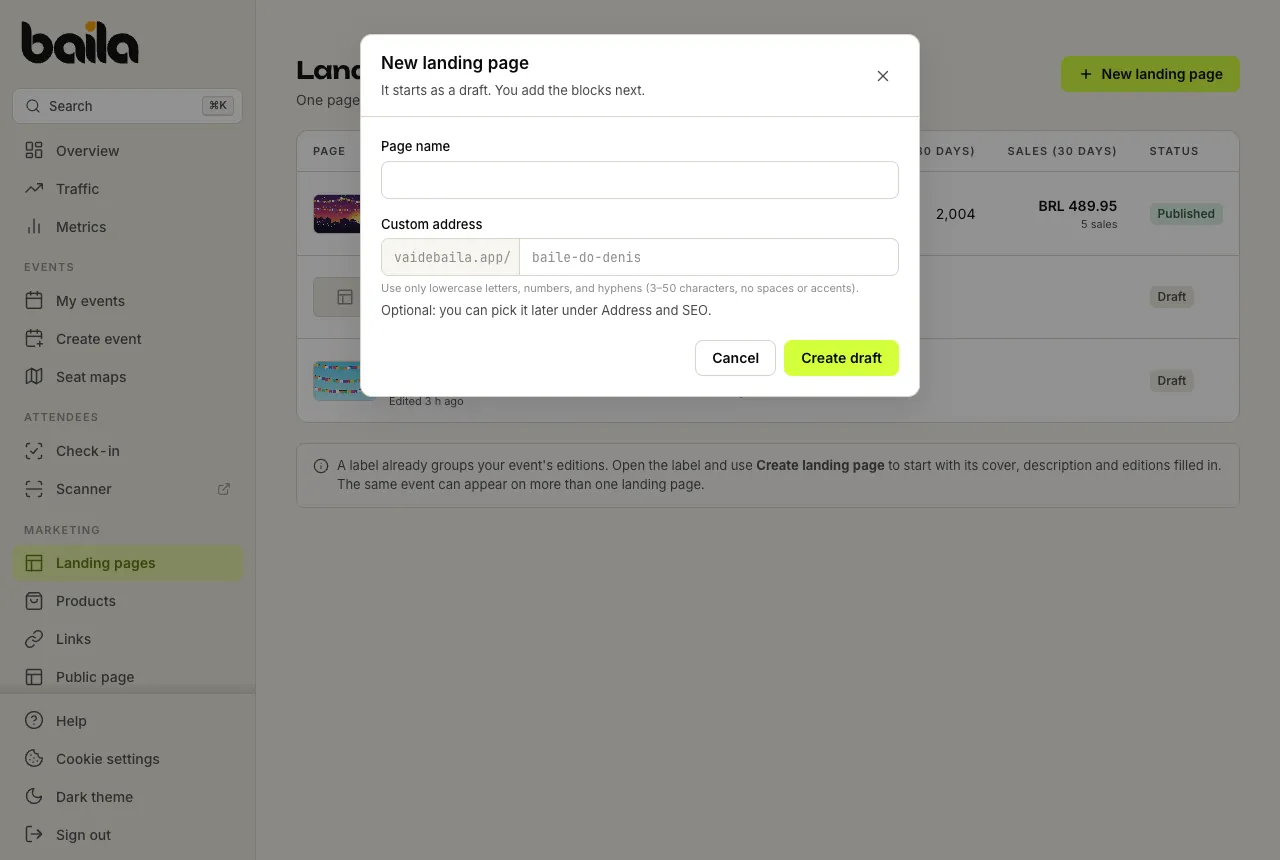
From scratch: click New landing page, enter a Page name and, if you like, pick the Custom address right away. Click Create draft.
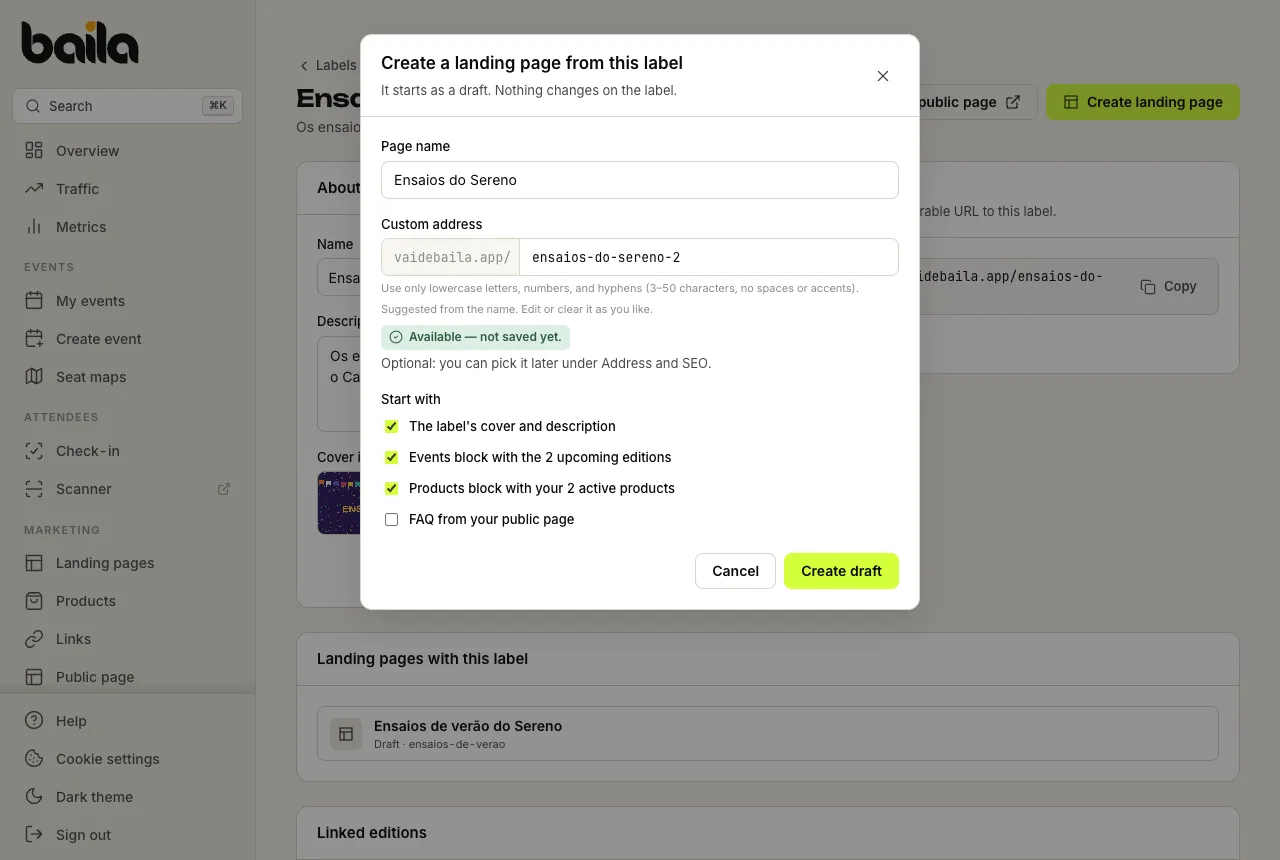
From a label: if your event's editions are already grouped in a label (under Labels), open the label and click Create landing page. Under Start with, tick what the page comes with: the label's cover and description, an Events block with the upcoming editions, a Products block with your active products, and the FAQ from your public page. Nothing changes on the label.
The page starts as a Draft: nobody sees it until you publish.
Build the page with blocks
On the Content tab, the left column lists the page's blocks in the order they appear. Click a block to edit its content in the panel on the right.
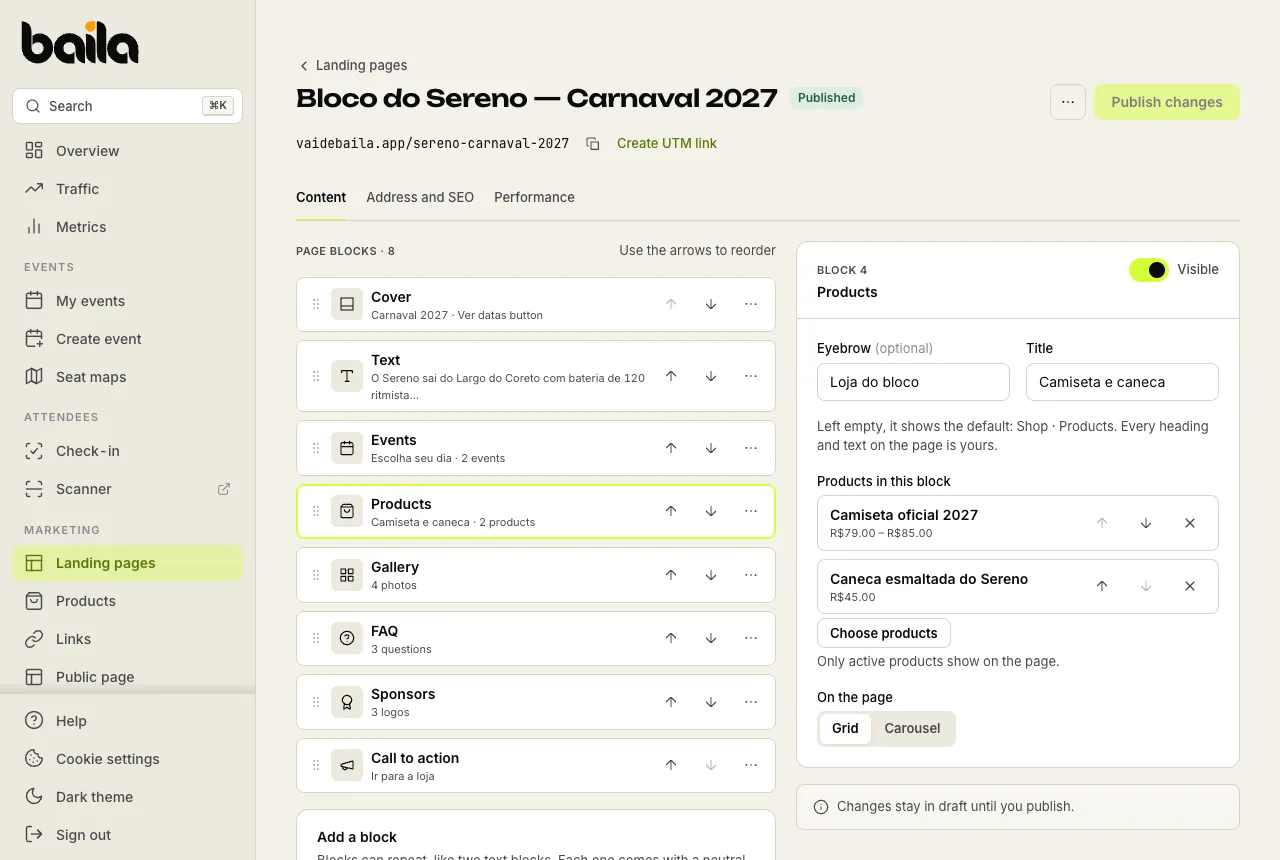
Under Add a block, choose the type:
| Block | What it shows |
|---|---|
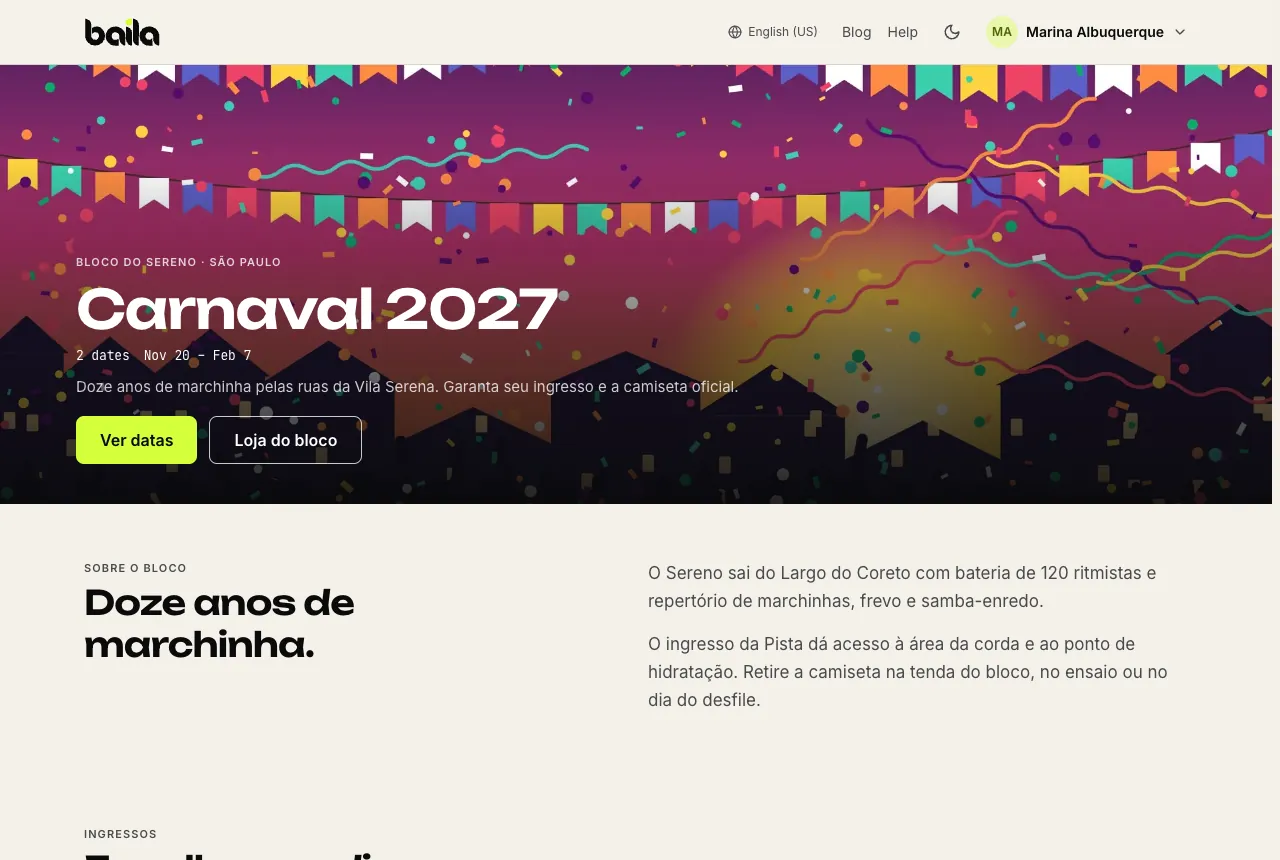
| Cover | The title, a wide image and the main button, which goes to the tickets, to the page's products or to another link. |
| Text | A heading and free text, such as the group's story or the race rules. |
| Events | The dates on sale. Add events, series or a whole label: new editions of a label join on their own. Pick the Order (By date or Manual), Highlight the next date and Show past editions. |
| Products | The catalog products you pick under Choose products, as a Grid or Carousel. |
| Gallery | Up to 24 photos. |
| FAQ | Questions and answers, such as where to pick up the t-shirt. |
| Video | A YouTube or Vimeo video that plays right on the page. |
| Sponsors | Up to 24 logos, each with an optional link to its website. |
| Call to action | A highlighted line with a button. |
A few rules:
- Cover and FAQ can only appear once per page. Other blocks can repeat, like two text blocks.
- Every block has an optional Eyebrow and Title. Left empty, the page uses a neutral heading (Dates, Shop, About, Gallery, FAQ, Support). All the text on the page is yours.
- Use each block's arrows to change the order. In the block's ... menu you can Hide it (it gets a Hidden badge and leaves the page without being deleted), Duplicate it or Remove it.
- Draft and private events don't show, and only active products show on the page.
Click Save draft to keep your work. Changes stay in draft until you publish.
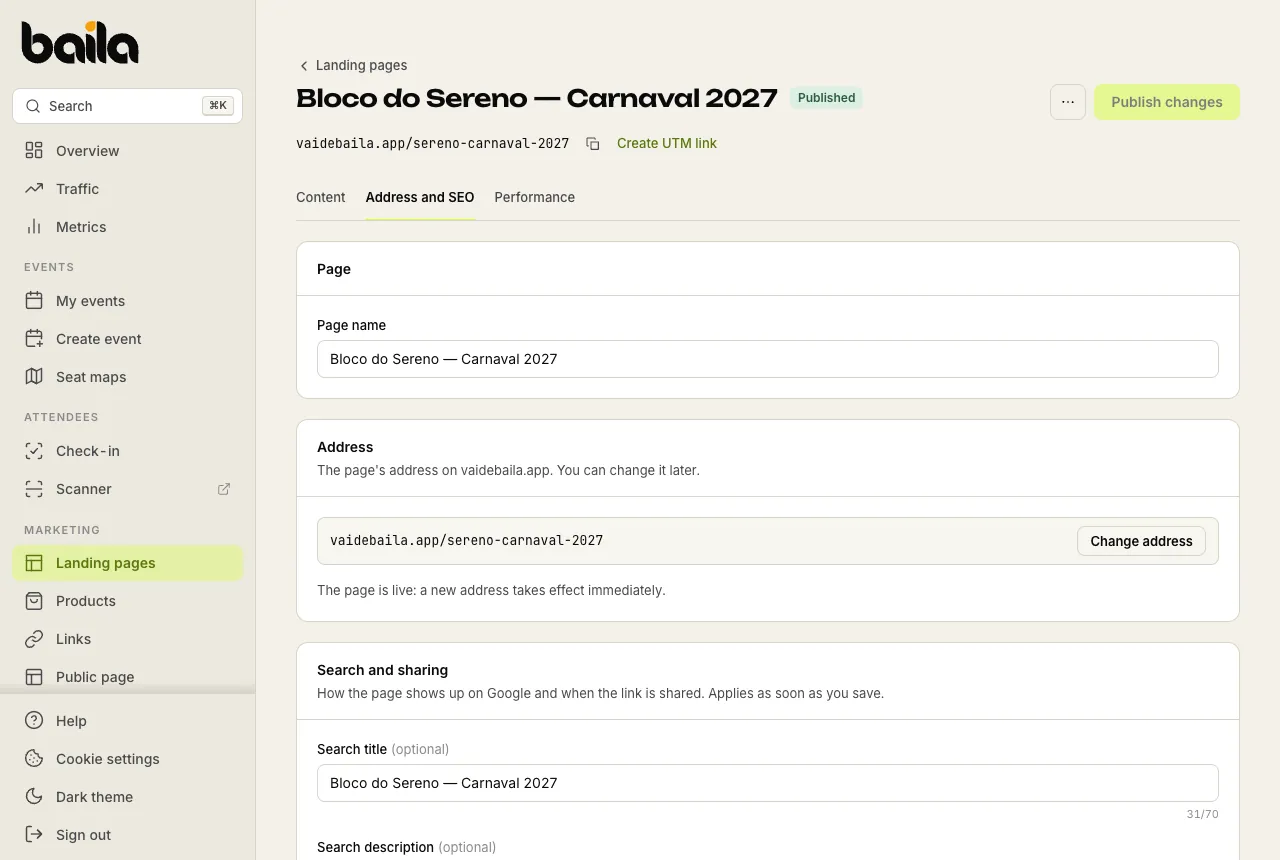
To see how the page will look before you publish, click Preview. The dashboard saves the draft and the page opens in a new tab, with a preview notice; nobody else sees it. The button only works once the page has an address, chosen on the Address and SEO tab.
Address and SEO
On the Address and SEO tab:
- Page: the page name, as it shows in your list of landing pages.
- Address: choose A new address or An address I already reserved. To change it later, use Change address: the old address keeps leading to the page.
- Search and sharing: the Search title, the Search description and the Share image, shown when the link is shared on WhatsApp or social media. Left empty, it uses the cover image. These fields apply as soon as you save.
Publish, unpublish and delete
- Publish: the page needs an address. Click Publish and it goes live. From then on, each saved change shows the Unpublished changes badge until you click Publish changes. Once the page is published, the View page link opens the live page in a new tab.
- Promote: below the title, the address has a copy button and the Create UTM link shortcut, which opens the Link builder with this page already selected.
- Unpublish: in the ... menu at the top, Unpublish takes the page offline. The address stays reserved and you can publish again whenever you want.
- Delete: only shows for unpublished pages. The address stays reserved for your organization and can be used again. A page that has received orders can't be deleted: leave it unpublished.
What buyers see
The page opens with the cover and follows the order of your blocks. In the Events block, each date shows its lowest price, and the next date can open by default, with its tiers and what each tier includes.
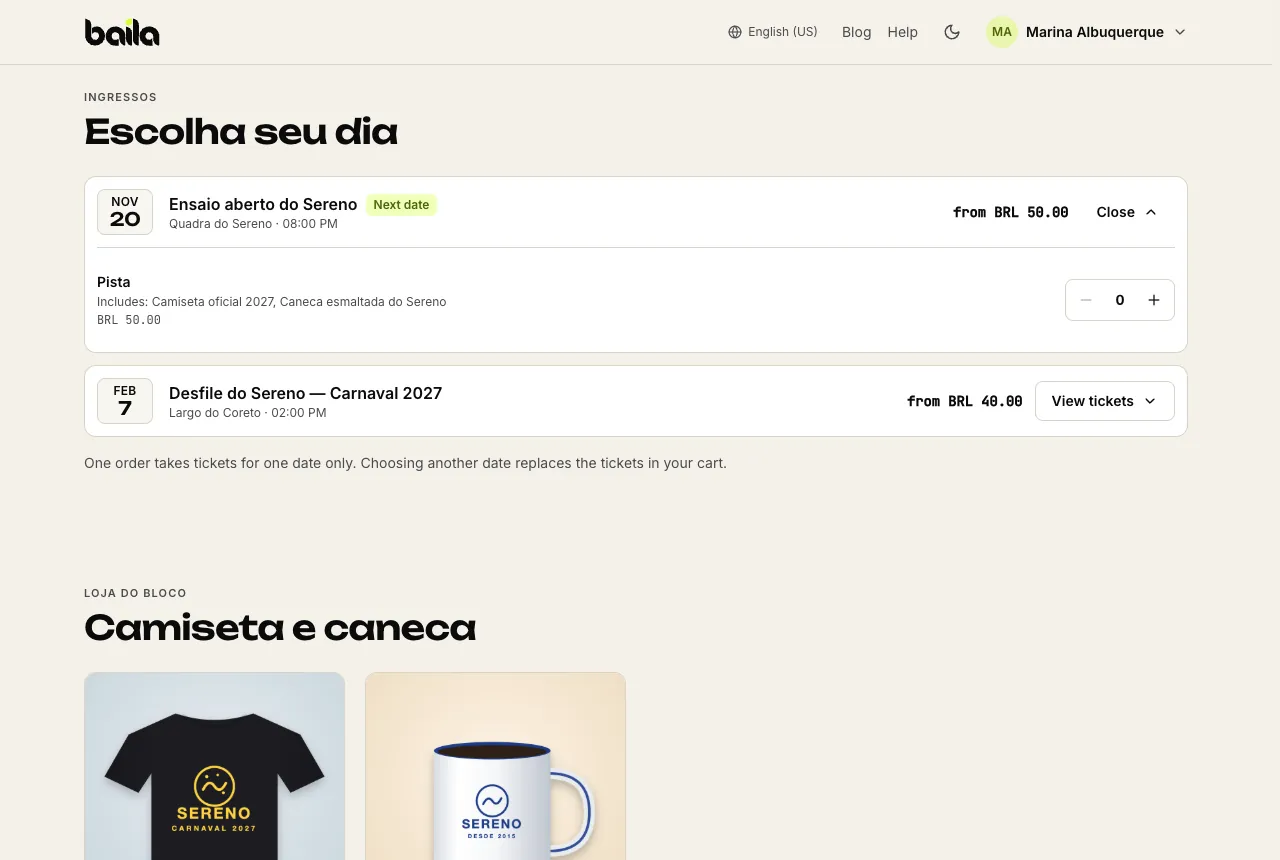
Buyers pick tickets for one date and up to 20 different items, with up to 10 units of each option. The cart bar at the bottom of the page shows the total and a Continue button. If they pick another date, the page asks whether to swap the tickets; the products stay. See what happens at checkout.
In the Baila app, the landing page link shows an Open in browser button, and the purchase happens on the website.
Frequently asked questions
Can an event be on more than one landing page? Yes. The same event can show on several pages, and the event page keeps working as usual.
Do I need products to have a landing page? No. A page with just a cover, text and dates works fine. Products are optional.
How do I know how many visits and sales the page brought in? On the page's Performance tab. See how to track landing page performance.
Who on my team can create landing pages? Anyone with the Manage labels, landing pages and URLs permission.
Related articles
How to create UTM links with the Link builder
Create one link per channel (Instagram, WhatsApp, email…) that leads to an event, a label or a landing page, and see where your sales came from.
How to track landing page performance
See each landing page's visits, promoter link clicks, ticket and product sales, where the visits came from and how sales through promoter links are credited.