How to create and edit products in your catalog
Add t-shirts, mugs, kits and other items with photos, a price, options such as Size and Color, and stock for each variant. Then edit, duplicate or archive them.
This is done in the organizer dashboard
Under Products you build the catalog of what you sell besides the ticket: the official t-shirt, the mug, the cap, the kit. Each product has photos, a price, options (such as Size and Color) and its own stock for each combination. The same catalog feeds your landing pages, your public page and the items included in a ticket tier.
Before you start
Products and landing pages are available once product sales are turned on for your account.
Where to find the catalog
In the side menu, under Marketing, click Products (or go to dashboard.vaidebaila.app/products). The Catalog tab lists your products with their type, price, stock, delivery methods, where each one appears and its status.
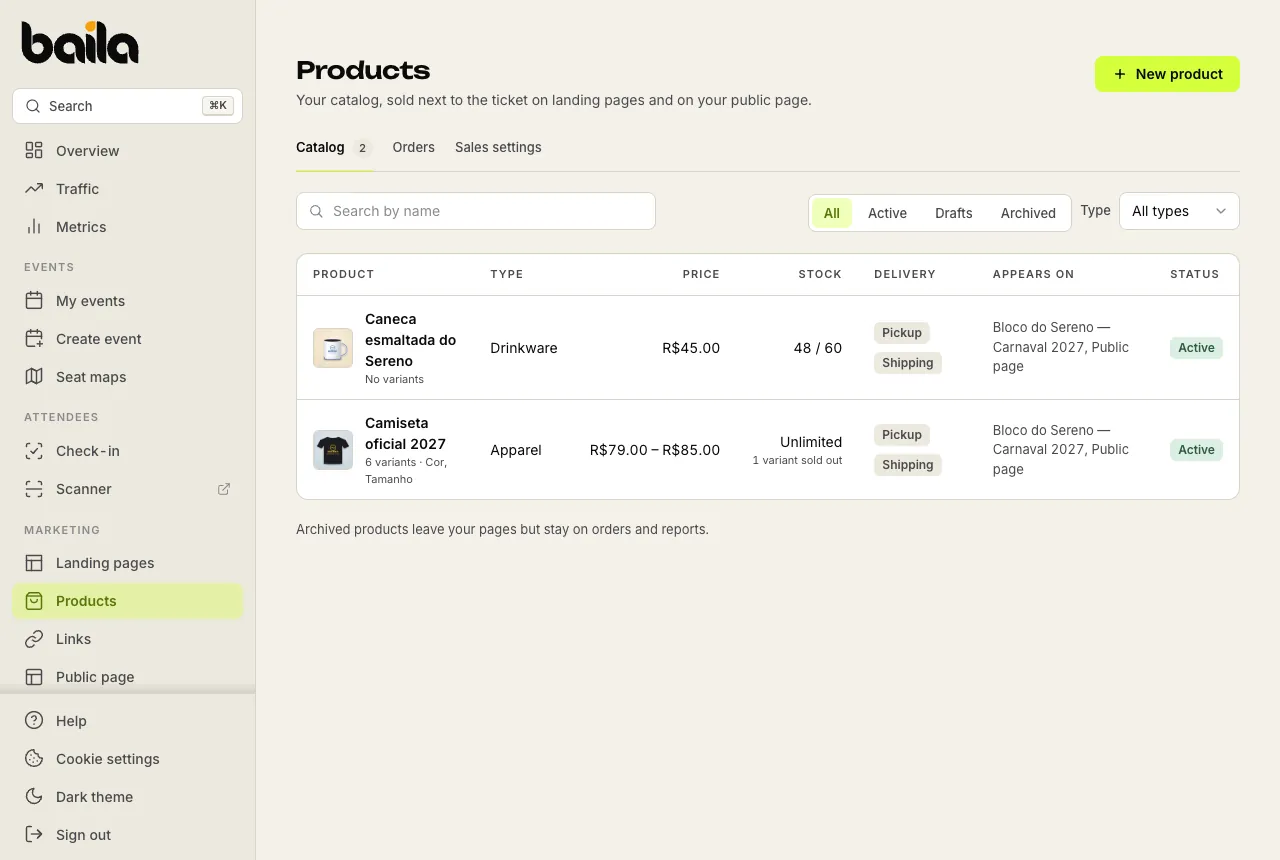
Use the All, Active, Drafts and Archived filters and the Type filter to find a product in a large catalog.
How to create a product
Click New product.
Under Product type, choose Apparel, Drinkware, Accessory, Kit or Other. The type pre-fills the most common options and details: Apparel, for example, starts with a size option (P, M, G, GG: Brazil's S, M, L, XL) and the Material, Fit and Size chart fields. You can change all of it later.
Under Information, fill in the Name and, if you like, the Description. Drag or pick the Photos: up to 8, as JPG, PNG or WebP files of up to 5 MB each. The first photo is the cover; use the arrows to reorder them.
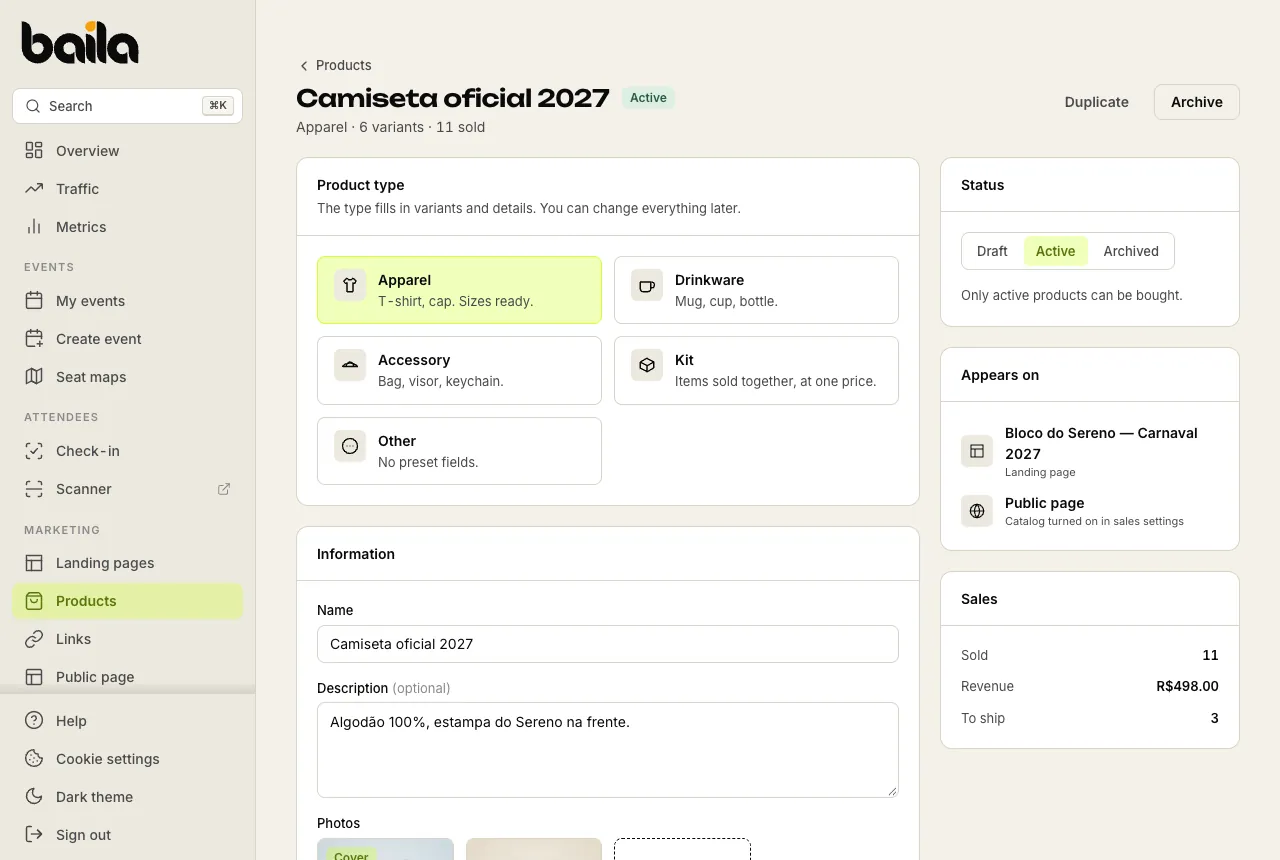
Enter the Base price and set up the variants (see below).
Under Delivery, turn on Pickup, Shipping or both. See how to set up shipping and pickup.
Under Status, choose Active to put the product on sale, or leave it as a Draft to finish later. Click Save.
Options and variants: size, color and stock
Under Variants, each option (such as a color option) gets its possible values (such as black and white). A product can have up to 3 options. Each combination of values becomes a variant with its own stock: with two colors and three sizes, the t-shirt has 6 variants, from black / P to white / G.
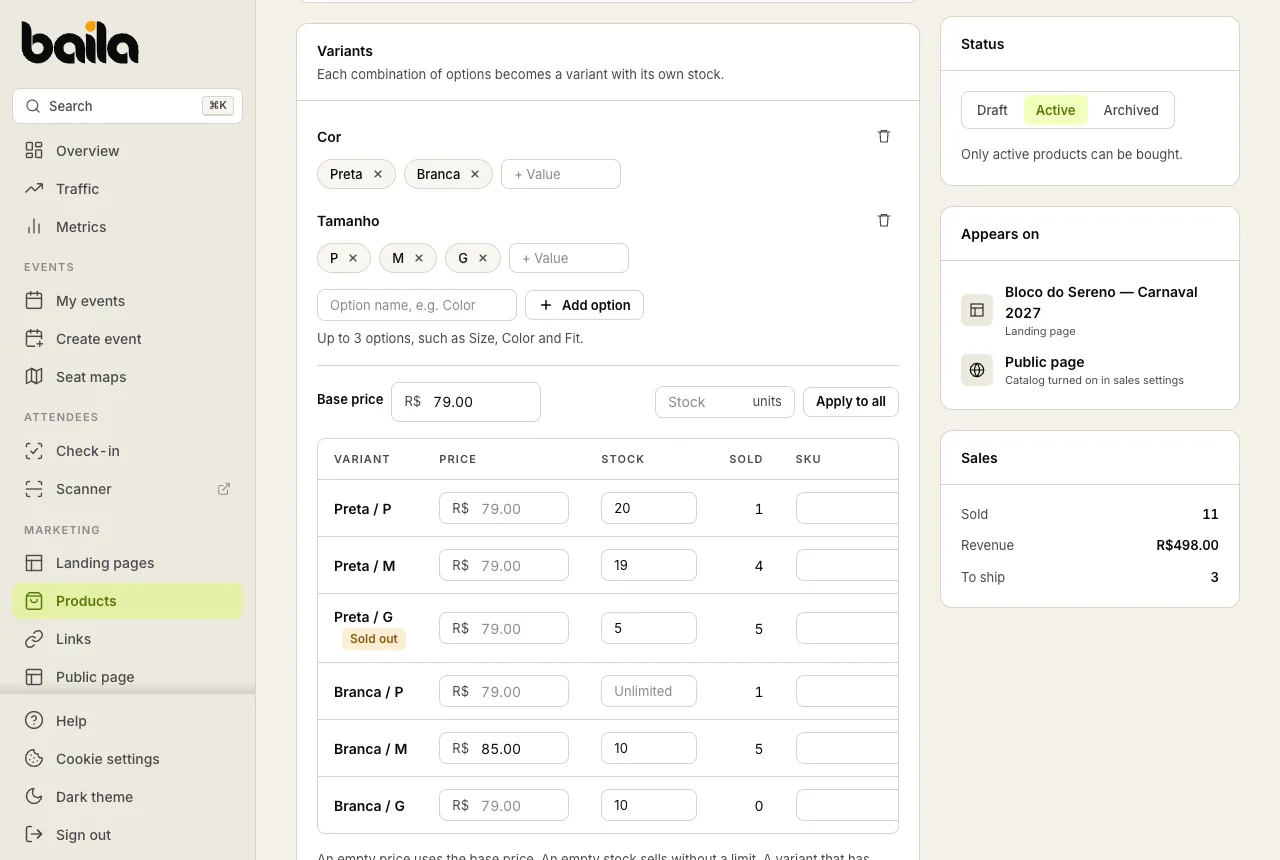
In the variant grid, each row has:
| Column | What it is for |
|---|---|
| Price | Optional. Empty uses the Base price. Fill it in only when a variant costs something else, such as GG. |
| Stock | How many units you have. Empty sells without a limit. Use Apply to all to give every variant the same stock at once. |
| Sold | How many units have been sold. |
| SKU | Optional: the code you use in your own stock control. Buyers don't see it. |
| On sale | Turn it off to take only that variant off sale, without touching the others. |
When a variant runs out of stock, it shows as Sold out in the dashboard and buyers can't pick that combination. To restock, raise the stock and save. Stock can't go below what has already been sold.
A variant that has already sold is never deleted when you remove a value from an option: it goes off sale and stays on its orders.
Edit, duplicate and archive
- Edit: open the product from the list, change what you need and click Save. A new price or stock applies to the next sales; orders already placed don't change.
- Duplicate: creates a draft copy, handy for launching next year's t-shirt with the same options.
- Archive: removes the product from your landing pages and public page. It stays on orders and reports, and you can make it active again under Status. If the product is included in a ticket tier, the tier keeps selling without the item; the same happens if you set the product back to Draft or turn off Pickup.
- Delete: only shows for products that have never sold, are on no published landing page (a draft doesn't count) and are included in no ticket tier. After the first sale, archive instead.
In the editor's side panel, Appears on lists the landing pages and the public page the product is on, and Sales shows how many units were sold, the revenue and how many are To ship.
Frequently asked questions
Can I sell a product without a ticket? Yes. Buyers can buy products only, with no ticket, on a landing page or on your public page. See how selling tickets and products together works.
What about a product priced at 0.00? A product or variant priced at BRL 0.00 isn't sold on its own. It is meant to come with the ticket, as an item included in a ticket tier.
Who on my team can change the catalog? Anyone with the Manage products permission, which comes with the Owner, Administrator, Manager and Producer roles. See how to manage roles.
Related articles
How to message your ticket holders after the event
Write a short message with up to 3 links and Baila e-mails it to ticket holders 1 hour after the event. Then follow up on WhatsApp.
How to include a catalog item in a ticket tier (kit, t-shirt)
Make every ticket of a tier come with a t-shirt, a kit or another catalog item. The buyer picks the size for each ticket and picks the item up in person.