How to message your ticket holders after the event
Write a short message with up to 3 links and Baila e-mails it to ticket holders 1 hour after the event. Then follow up on WhatsApp.
This is done in the organizer dashboard
The best moment to bring your crowd back is right after the party, while the night is still fresh. With the after-event message you write a short text and up to 3 links (the photos of the night, the next date, a survey) and Baila e-mails it to everyone who had a ticket, 1 hour after the event ends. You don't need to be online when it goes out.
Where to write the message
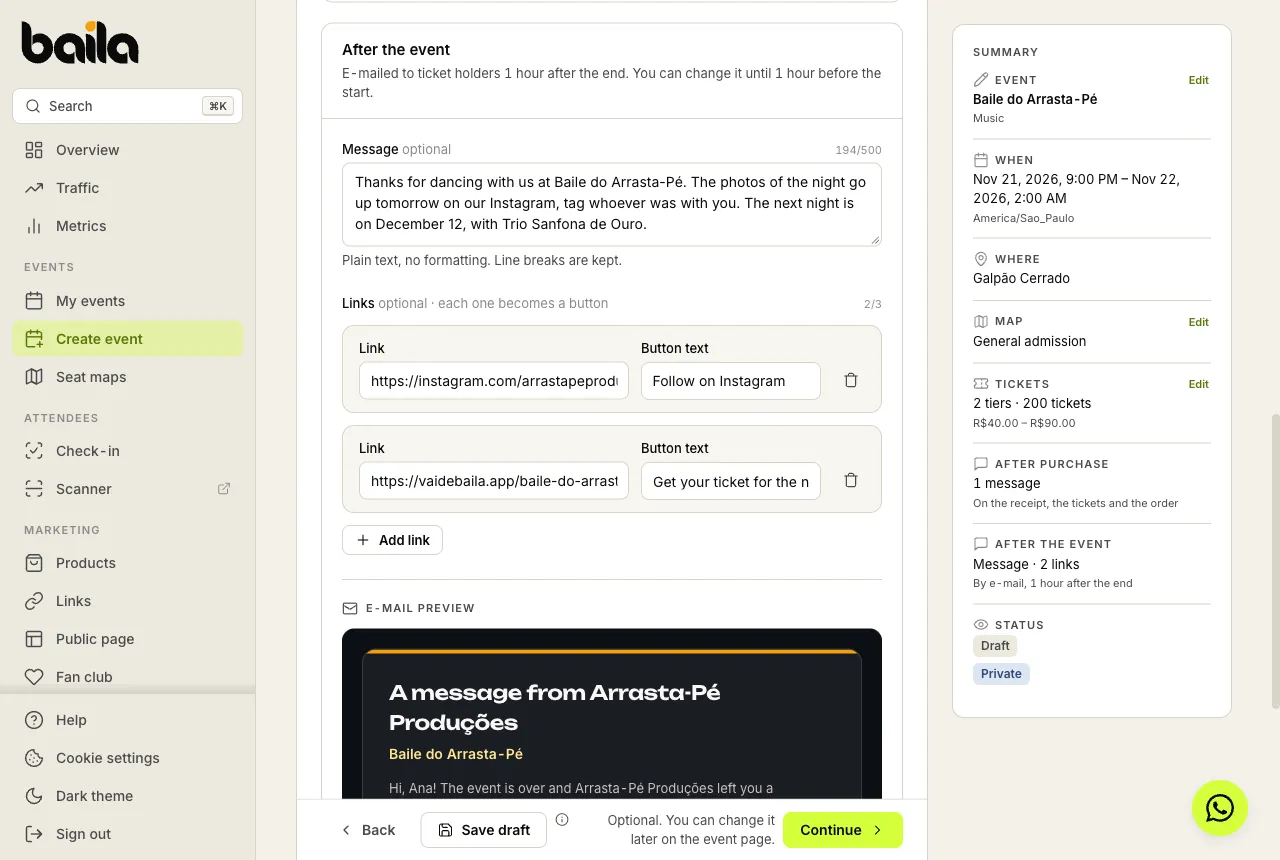
You can write it in two places. Both edit the same message:
- While creating the event, in the Messages step of the wizard. The After the event block sits below the After purchase message. Both are optional.
- After publishing, on the event page, Promotion tab, After the event section.
Write the message
Open the event and go to the Promotion tab. In the After the event section, the Scheduled badge and the two lines at the top show when the e-mail goes out (Automatic send) and the deadline for changing the text.
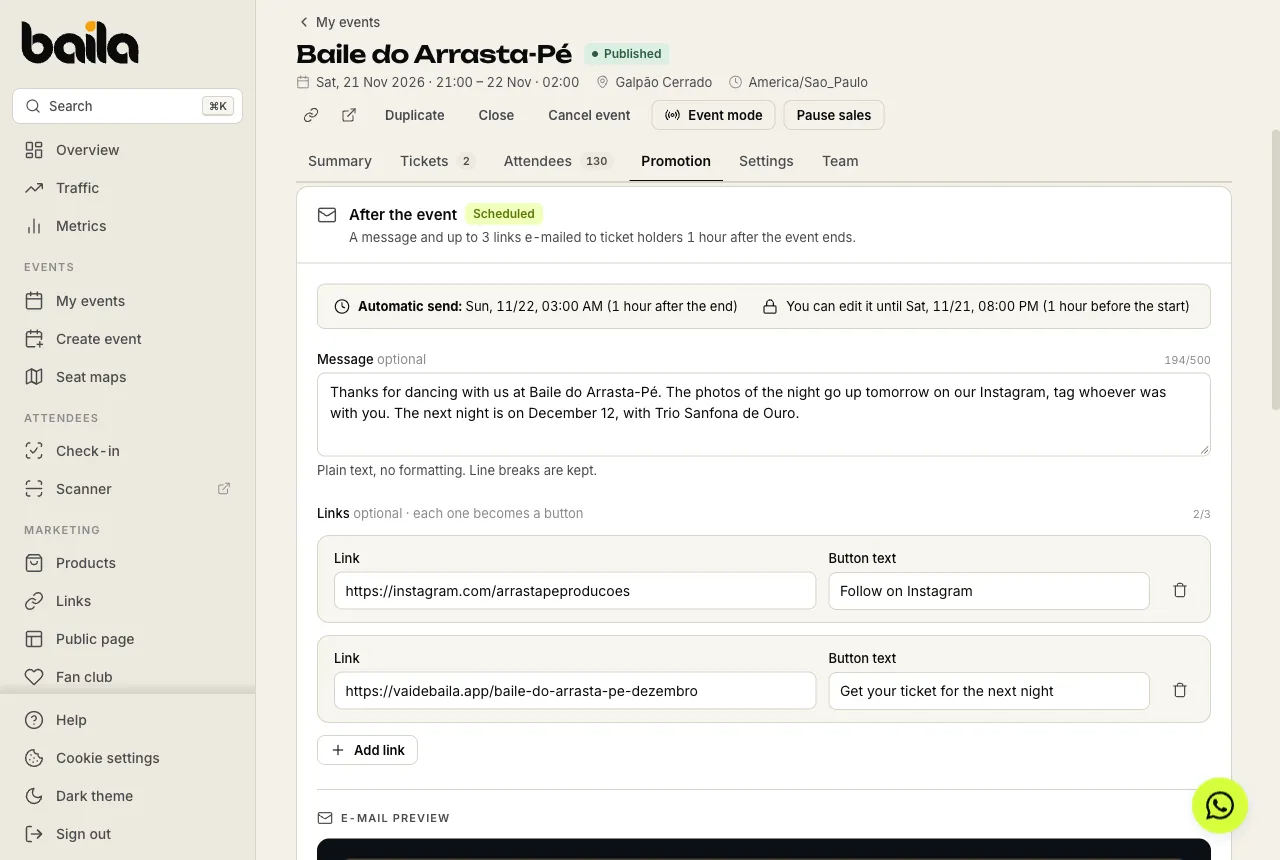
Write the Message, up to 500 characters. It is plain text: line breaks are kept, no bold or images. No idea what to write? Click Use suggested text and adjust it to your style.
Under Links, paste up to 3 links (for example, instagram.com/yourprofile). Each one becomes a button in the e-mail. For Instagram, WhatsApp and Telegram, Baila suggests the button text (for example, Follow on Instagram); you can change it.
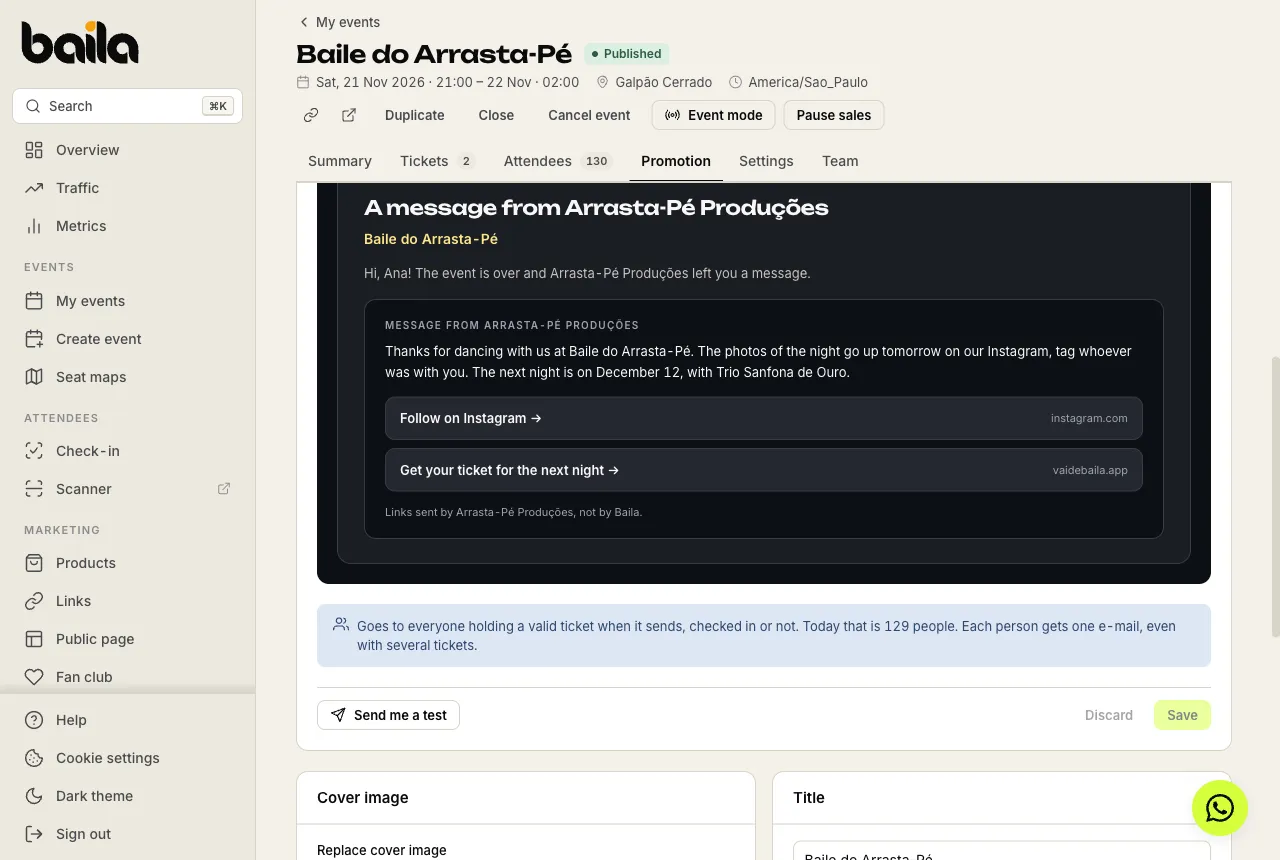
Check the E-mail preview just below and click Save.
The message is optional. With no text and no links, nothing is sent.
See how the e-mail arrives before the event
Click Send me a test. The e-mail lands in your account's inbox exactly as your attendees will get it, with a Test send notice at the top. The test uses the text on the screen, even if you have not saved it yet.
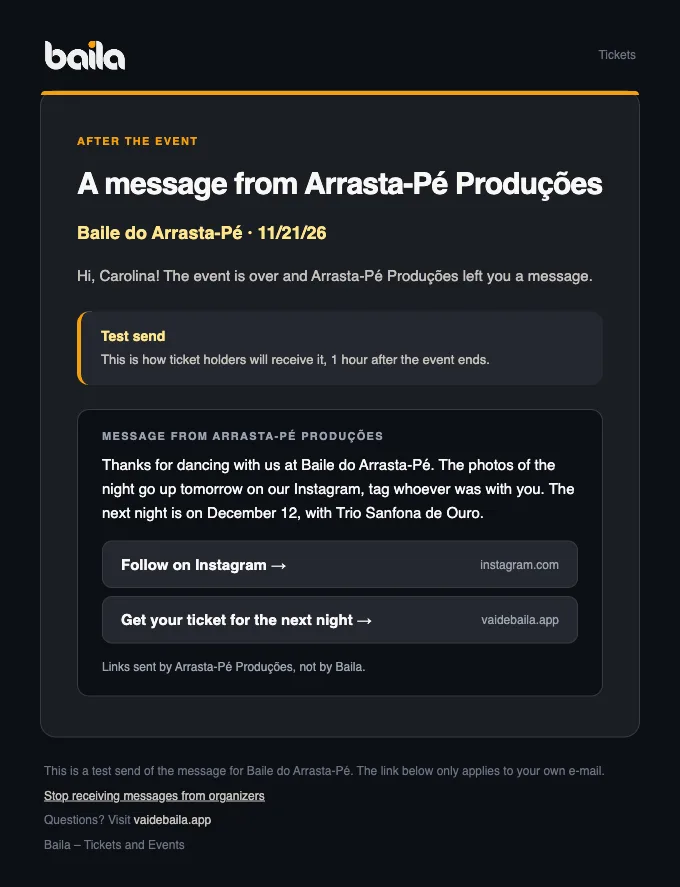
The buttons open your links. Below them, the e-mail says the links were sent by the organizer, not by Baila.
Who receives it
- Everyone holding a valid ticket when it is sent, checked in or not. People who didn't show up get it too: they are often the ones you most want back.
- One e-mail per person, even for someone who bought several tickets. If a ticket was transferred, the person holding it gets the e-mail.
- Cancelled or refunded tickets are left out (including refunds still in progress), and so is anyone who chose to stop receiving messages from organizers.
The section shows how many people would receive the message if it went out today. The number changes with new sales, transfers or refunds until the send time.
How long you can edit it
You can edit it until 1 hour before the event starts. After that, the section locks and the message goes out as it is.
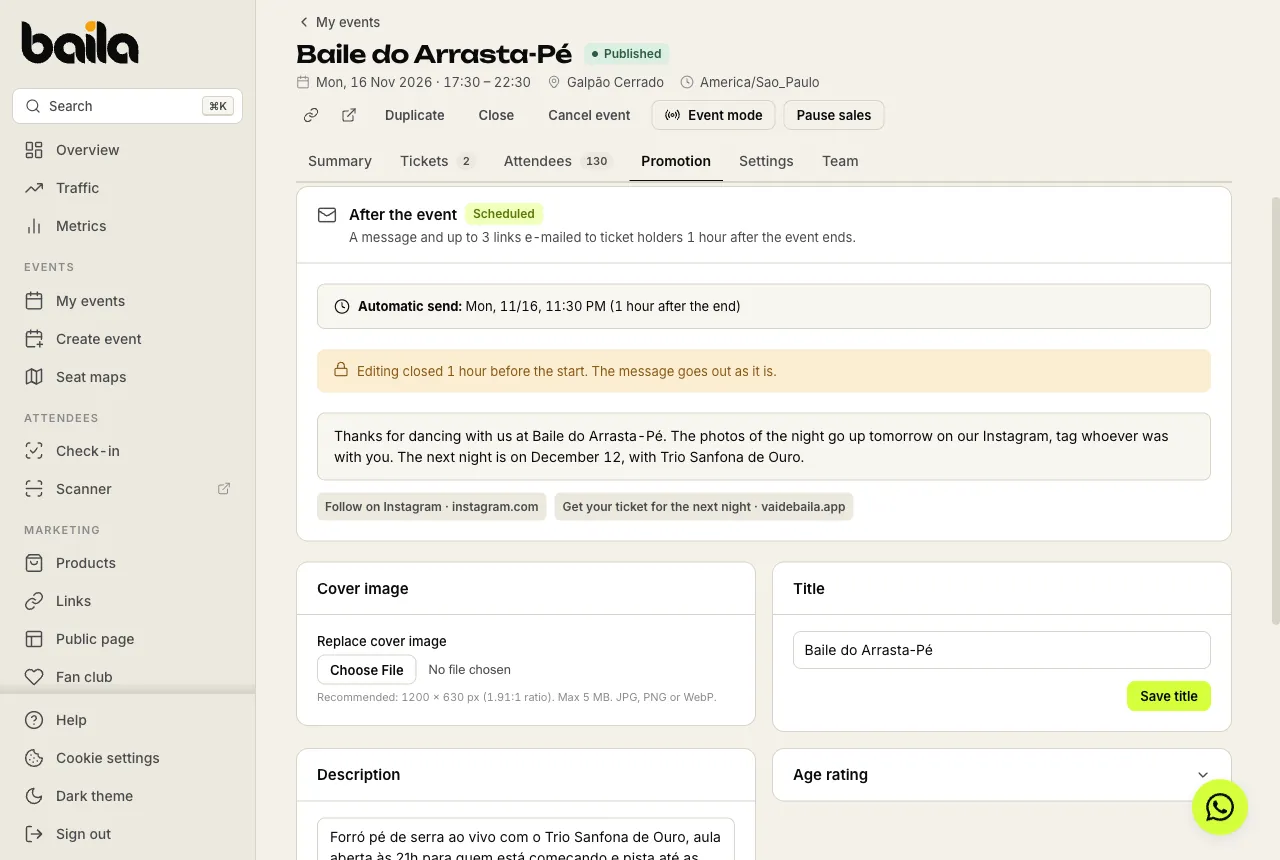
If nothing was written by then, nothing is sent for that event. If the event is cancelled, the message does not go out.
After it is sent
Once the e-mail goes out, the badge changes to Sent and the section shows the date and how many people it went to.
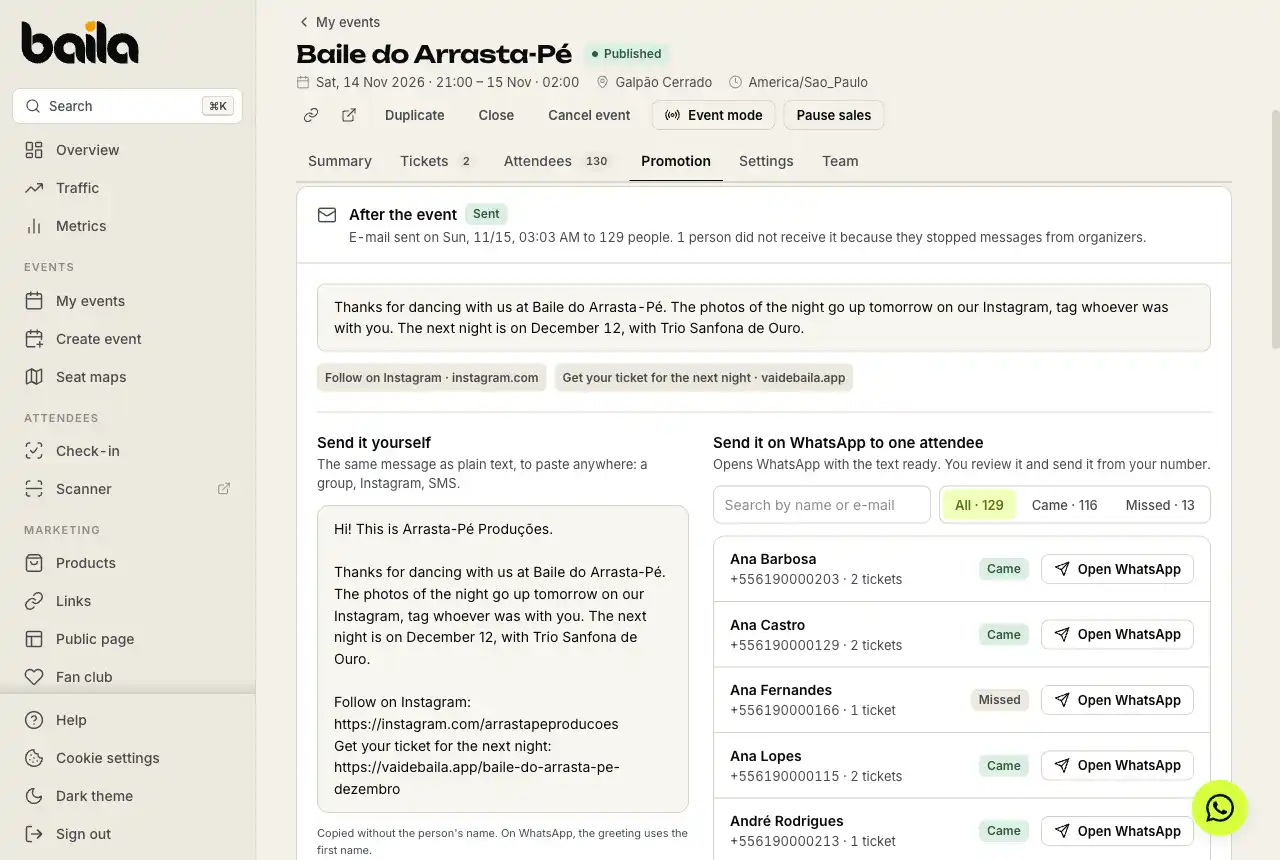
The same summary appears in the event report, in the Post-event message card.
Send the same message on WhatsApp
After the event ends, if a message was saved, the section gains the Send it yourself block, for organizers who prefer WhatsApp or want to reinforce the e-mail. Both shortcuts use the saved text; on WhatsApp you can adjust it before sending.
- Copy text copies the message with its links as plain text, to paste in the event group, a story or a text message. The copied text starts with a greeting without a name.
- Send it on WhatsApp to one attendee lists the ticket holders. Filter by All, Came (checked in) or Missed, or search by name or e-mail. Open WhatsApp opens a chat with the person's number and the text ready, starting with their first name. You review it and send it from your own number.
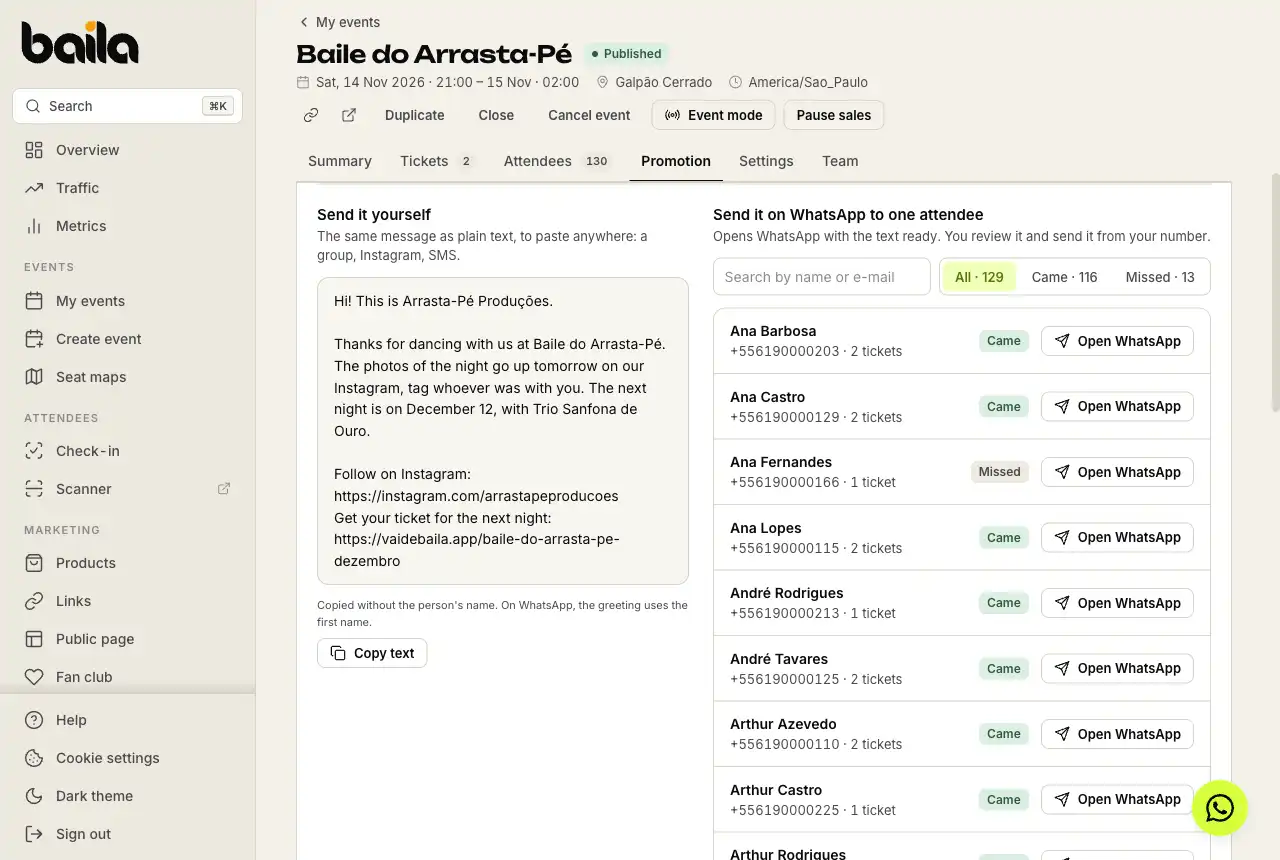
People without a phone number show no phone: the Pick a contact button opens WhatsApp so you can choose the chat. Anyone who stopped receiving messages from organizers is not listed.
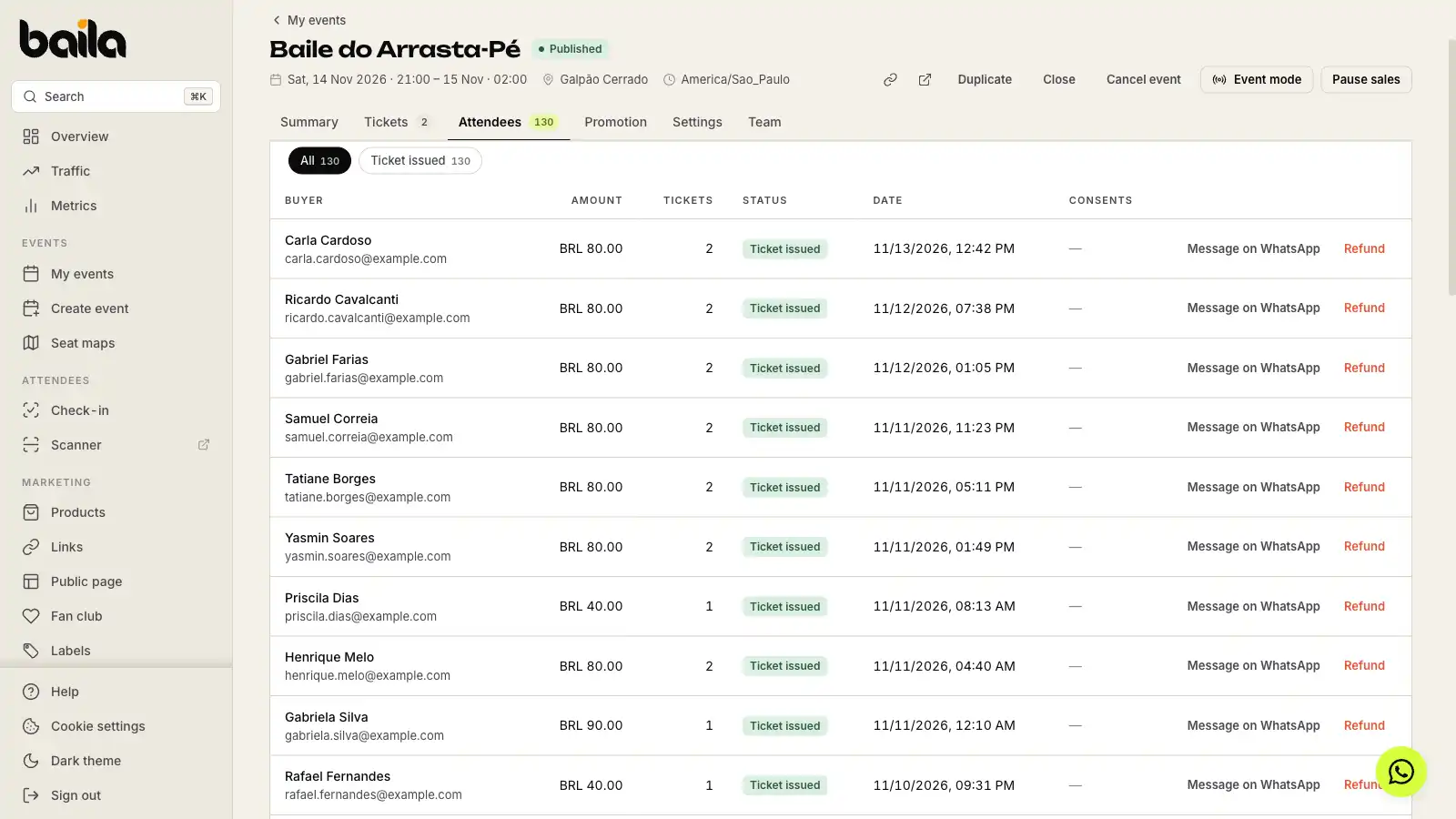
In the Attendees tab, each confirmed order gets a Message on WhatsApp shortcut that does the same for that order's buyer (except buyers who stopped receiving messages).
Frequently asked questions
Can I change the message after it was sent? No. Once sent, the section shows what went out and can't be edited. To reach your crowd again, write on WhatsApp or in your group directly: the list under Send it on WhatsApp to one attendee opens each person's chat, and you change the text before sending.
I forgot to write it before the deadline. What now? The automatic e-mail doesn't go out for that event. After it ends, you can still send something on WhatsApp, in your group or in your stories. For your next events, write the message in the event wizard, in the Messages step.
Does it work for recurring events? Yes. You write the message on the series, and every date gets a copy. Each date sends its own e-mail, 1 hour after that date ends, only to people who had a ticket for it. On a date's page, the section says the message comes from the series. To change it, edit the series: the change applies to the dates that are still open for editing.
Someone says they didn't get it. Why? Check that the person still had a valid ticket when it was sent (not cancelled, not refunded, not transferred to someone else) and that they didn't choose to stop receiving messages from organizers. It's also worth checking their spam folder and Gmail's Promotions tab. If none of that explains it, send the text on WhatsApp with Open WhatsApp.
Does the test e-mail count as the send? No. The test only goes to your account's e-mail and you can repeat it after each change to the text. The stop-receiving link in the test's footer only applies to your own e-mail.
What do attendees see, and how do they stop receiving these? An e-mail with your event's name, your message and the link buttons. The footer has a Stop receiving messages from organizers link. Clicking it stops messages from every organizer on Baila, while tickets, receipts and order notices keep arriving. See how to stop receiving messages from organizers.
Who on my team can write the message and see the WhatsApp list? Writing it and sending the test need permission to edit the event. The attendee list and the WhatsApp shortcuts show for people who can see the event's orders, because they include names and phone numbers.
See also
How to track landing page performance
See each landing page's visits, promoter link clicks, ticket and product sales, where the visits came from and how sales through promoter links are credited.
How to create and edit products in your catalog
Add t-shirts, mugs, kits and other items with photos, a price, options such as Size and Color, and stock for each variant. Then edit, duplicate or archive them.